
PC Time Malfunction
Date and time settings on any computer play a crucial role in accessing online platforms and websites. In some cases, if the computer’s date and time settings are incorrect, it can prevent you from accessing your favorite online platforms and web pages. This is because when you send a connection request to a web page, the server checks your PC’s date and time settings for security reasons.
If you’re experiencing issues with syncing your Windows computer’s time with a time server, you can try the following steps:
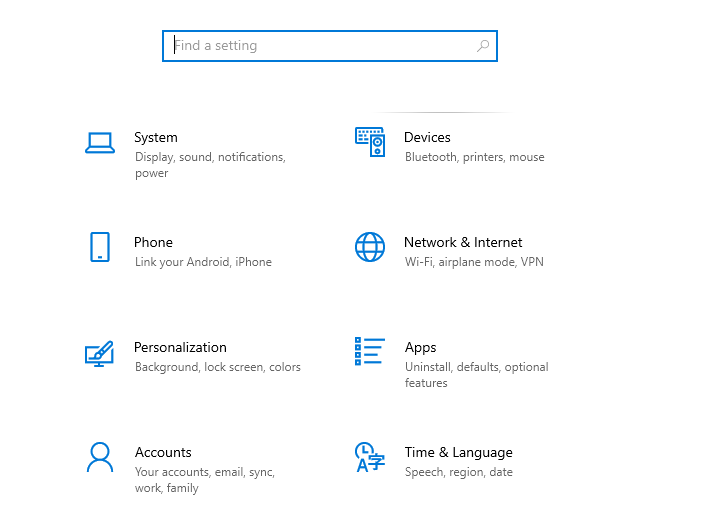
Open the “Settings” on your Windows computer. By clicking on the “Start” button and selecting the gear icon, which represents the Settings app.
Click on the “Time & Language” option. This will open the settings related to date and time.
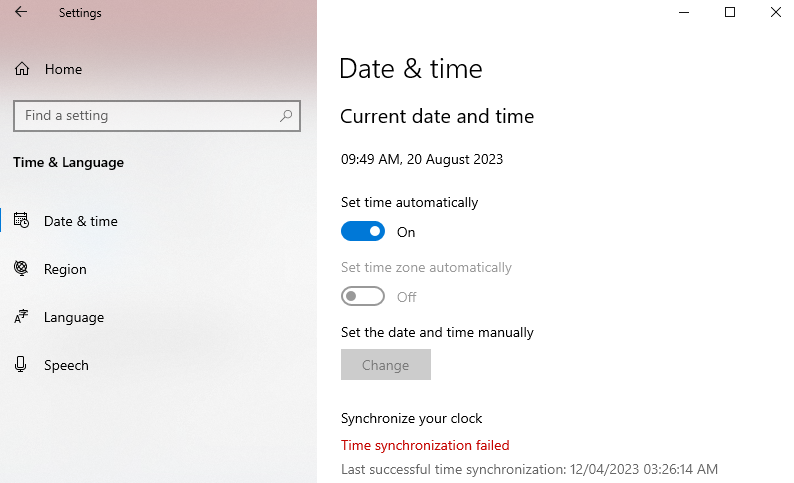
Under the “Date & Time” tab, ensure the “Set time automatically” option is enabled. This allows your computer to synchronize its time with a time server automatically.
If the “Set time automatically” option is already enabled and you’re still facing issues, you can try disabling it and then allowing it again.
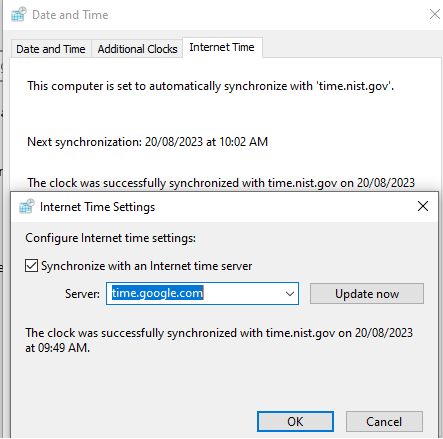
You can also try selecting a different time server from the provided list. Click on the “Change” button under the “Synchronize your clock” section and choose a different time server. Then, click on “Sync now” to initiate a manual synchronization
- time.nist.gov
- time.google.com
- time.windows.com
- Get the local NTP server List by Clicking
sometimes a computer restart may solve the issue, so please do a Restart.
What to Do If PC Won’t Sync with the default time server in windows
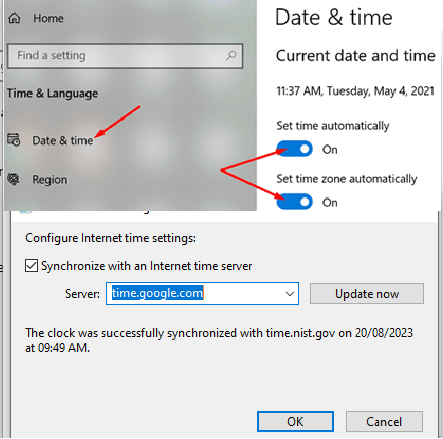
Go to Settings, select Time and Language, and make sure Windows is allowed to set the date and time settings automatically.
Restart the Windows Time Service
- Press the Windows + R keys to open a new Run window.
- Type services.msc hit Enter.
- Scroll down to Windows Time.
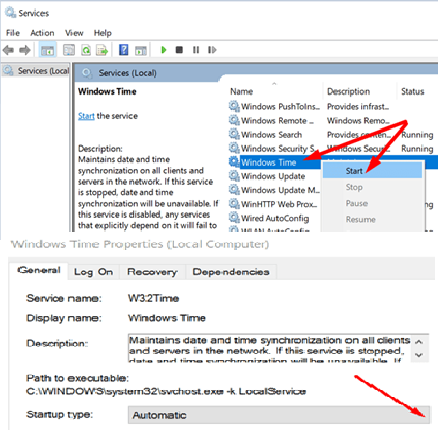
- Scroll Windows Time service and stop it.
- Then, Start the Time service again.
- Put Startup time In “Automatic”
- Save the setting & restart your PC.
Conclusion
- Set your Time Zone Properly.
- Check Firewall & antivirus software settings for Time services.
- Restart Windows Time Services.
FAQ
Why is the NTP server used?
An NTP (Network Time Protocol) server is used to synchronize the time across a computer network. It provides accurate and consistent time information to network-connected devices.
Which NTP server should I use?
When selecting an NTP server, consider factors such as the scale of your network, the required accuracy, the level of control, and any specific compliance or regulatory requirements you must meet. the chosen server Should be reliable, secure, and maintained by a trusted source.
List Of NTP Servers
- pool.ntp.org
- time.google.com
- time.windows.com
- time.apple.com
- ntp.nasa.gov
- pool.ntp.org
- ntp1.aliyun.com
- ntp2a.mcc.ac.uk
- ntp3.net.berkeley.edu
- ntp1.inrim.it
Fixing Time Sync from the Command Line
When the Settings app does not fix the problem, the built-in w32tm tool gives you more control and shows what is actually going wrong. Open Command Prompt or PowerShell as Administrator before running these commands.
1. Check the current status
w32tm /query /status
w32tm /query /source
The status output shows the last successful sync time and the source. If the source shows Local CMOS Clock or Free-running System Clock, the PC is not syncing with any time server at all.
2. Force a sync now
w32tm /resyncIf this returns an error saying no time data was available, Windows cannot reach its time source. Move on to the next steps.
3. Set a time server manually
w32tm /config /manualpeerlist:"pool.ntp.org" /syncfromflags:manual /updateYou can list more than one server by separating them with spaces inside the quotes, for example "time.google.com pool.ntp.org". On a site with its own time server, put that server’s IP address here instead.
4. Restart the Windows Time service
net stop w32time
net start w32time
w32tm /resync
As a last resort, w32tm /unregister then w32tm /register resets the service to default settings.
5. Test whether the server is reachable
w32tm /stripchart /computer:pool.ntp.org /samples:5 /dataonlyIf you see offset values, the server is reachable. If you see errors or timeouts, the problem is almost always the network or firewall.
Firewall and UDP Port 123
NTP uses UDP port 123. If a corporate firewall, router or security appliance blocks this port, Windows cannot sync no matter which server you choose. Check:
- The site firewall allows outbound UDP 123 from the PC or server to the NTP source.
- If the PC will act as a time server for other devices, inbound UDP 123 is allowed in Windows Defender Firewall.
- Third-party antivirus or endpoint software is not blocking the Windows Time service.
Domain vs Workgroup Behaviour
| Setup | Where time comes from | What to do |
|---|---|---|
| Domain-joined PC | The domain controllers, following the domain hierarchy | Do not set manual servers on member PCs. Fix time on the domain controller that holds the PDC Emulator role, and point that one to a reliable external source. |
| Workgroup PC | The server set in Windows (time.windows.com by default) | Use the Settings app or the /manualpeerlist command above. |
On a domain PC, you can return to normal domain sync with w32tm /config /syncfromflags:domhier /update. Time differences on a domain are serious because Kerberos authentication allows only a small clock difference, five minutes by default, so users can fail to log in when clocks drift.
Why Time Sync Matters for CCTV and Access Control
On security systems, the timestamp is part of the evidence. If the NVR clock is ten minutes off, the recording no longer matches what witnesses, access control logs or alarm panels report. Common problems caused by wrong time include:
- Footage that cannot be matched to an incident time, which weakens it as evidence.
- Access control door events that do not line up with camera footage of the same door.
- Gaps or overlaps in recording when the clock jumps.
- Schedules for recording, arming and door access running at the wrong times.
- TLS errors when devices connect to cloud services or apps.
Using a Windows Server as the NTP Source for an NVR
On isolated CCTV networks without internet, a common approach is to sync one Windows server (for example the VMS or access control server) to a reliable source and let NVRs, cameras and controllers sync to it.
- Enable the Windows NTP server provider. In the registry, under
HKLM\SYSTEM\CurrentControlSet\Services\W32Time\TimeProviders\NtpServer, set Enabled to 1. UnderHKLM\SYSTEM\CurrentControlSet\Services\W32Time\Config, set AnnounceFlags to 5. Back up the registry first. - Restart the Windows Time service with
net stop w32timeandnet start w32time. - Allow inbound UDP 123 in Windows Defender Firewall.
- On the NVR, open the date and time or NTP settings (often under System > General > Date & Time or Network > NTP, depending on the brand and firmware). Enable NTP, enter the server’s IP address, port 123, and a sync interval, then save.
- Set the correct time zone on the NVR. NTP sends UTC, so a wrong time zone still shows the wrong local time.
- Let the NVR push time to cameras if it supports that option, so every channel shows the same timestamp.
More Questions About Windows Time Sync
Why does my PC lose time again after a restart?
If the time is wrong every time the PC starts, the motherboard CMOS battery may be weak. Replace it, then sync again.
Does the time zone affect NTP sync?
NTP itself works in UTC, so sync can succeed while the clock still looks wrong. Always check the time zone first. For Saudi Arabia, that is UTC+03:00 (Riyadh).
Can I use a public NTP pool for a CCTV system?
Yes, if the recorder has internet access. For isolated security networks, use a local server or a dedicated NTP appliance instead of exposing devices to the internet.
Why does a virtual machine keep drifting?
The VM may be getting time from both the host and an NTP server, and the two fight each other. Use one source only, according to your virtualisation platform’s guidance.
Related tools
Designing the network behind a CCTV or access control system, including where your time server sits? Try the free Network & CCTV Designer on techubox.com.