
Every installer gets this call sooner or later: “We can’t log in to the NVR.” The previous technician left or the password was never written down. The good news is that Hikvision and Dahua both have built-in, manufacturer-supported reset methods, as long as you are the legitimate owner and, ideally, a recovery option was set up at activation.
This guide covers only official methods documented by Hikvision and Dahua. No backdoor codes, cracked firmware or forum “unlock tools”: those can brick the recorder, void the warranty and leave the site exposed.
Quick answer
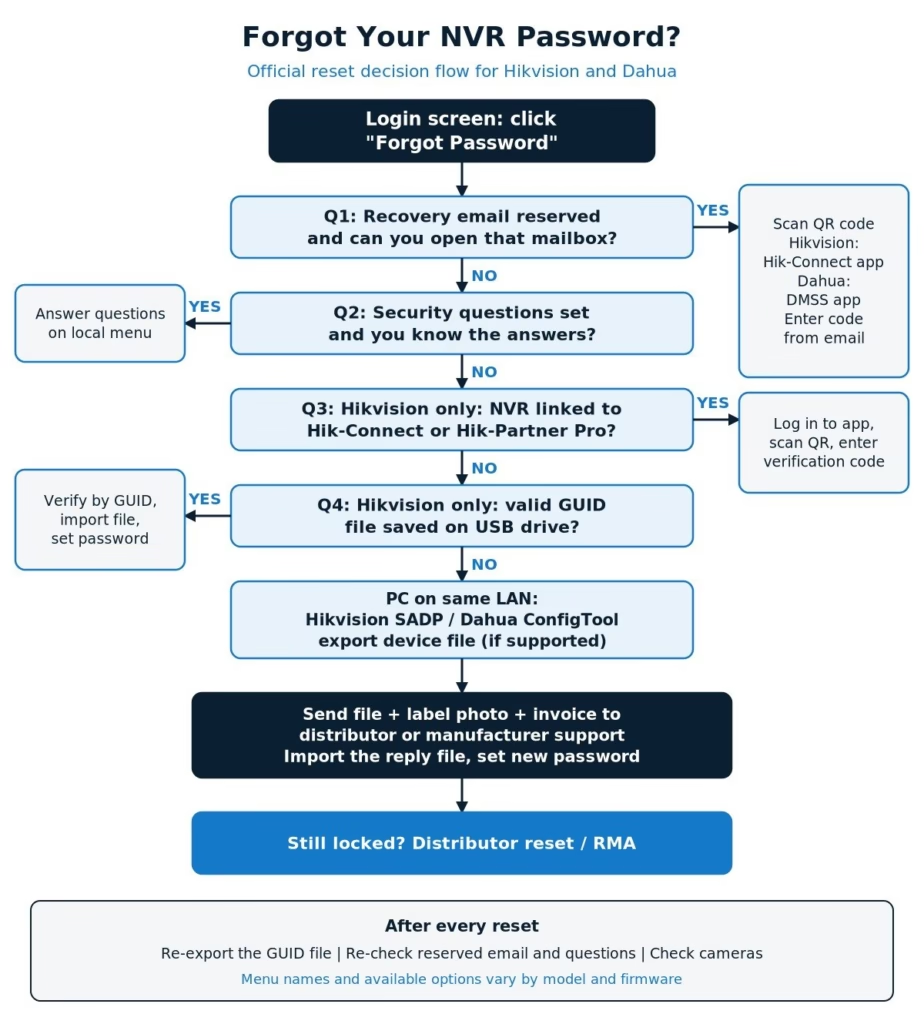
To reset a Hikvision NVR password, click Forgot Password on the login screen and use whichever method was set up: Hik-Connect / Hik-Partner Pro QR scan, reserved email, security questions, or importing the GUID file from a USB drive. If none was set up, use the SADP tool to export the device file and send it to your distributor or Hikvision support with proof of ownership. To reset a Dahua NVR password, click Forgot Password on the local menu, scan the QR code with the DMSS app to get a security code by email, or answer the security questions. If no recovery email was set, contact your distributor or Dahua support. Menu names vary by firmware, so follow what your screen shows.
Before You Start: What You Need
Most failed resets come down to preparation. Check these first:
- Local access. A monitor and mouse on the NVR, or a PC on the same LAN. Hikvision states its password reset strategies work within the local network only.
- Correct date and time on the NVR. Reset codes are tied to the device clock. A wrong date is one of the most common reasons a code is rejected.
- Access to the recovery email, if one was reserved during activation.
- Proof of ownership: a clear photo of the device label (model and full serial number) and, ideally, the purchase invoice. Support will ask for these.
- Do not reboot mid-process. On Hikvision, rebooting the device or changing the reserved email invalidates a pending verification code.
Pro tip: Try the passwords you might reasonably have used before you start a reset. On Hikvision, too many failed logins can lock the account for a while; on some Hikvision NVRs (certain series on firmware V4.75.000 and later) a Password Hints feature may also help you remember.
Hikvision vs Dahua: Official Reset Methods at a Glance
| Method | Hikvision | Dahua | Needs prior setup? |
|---|---|---|---|
| Reserved / recovery email + QR code | Yes (Hik-Connect app scan) | Yes (DMSS app scan) | Yes, email set at activation |
| Security questions | Yes (local GUI, some web/SADP) | Yes (local GUI on NVR/DVR) | Yes |
| Cloud account verification | Yes (Hik-Connect / Hik-Partner Pro) | Not the main route | Device added to the account |
| Key file on USB | Yes (GUID file) | No | Yes, file exported in advance |
| PC tool | SADP (export file to support) | ConfigTool (Password Reset tab) | No, but support must process it |
| Distributor / manufacturer support | Yes, with proof of ownership | Yes, with proof of ownership | No |
Not every model or firmware supports every method; your recorder’s Forgot Password screen is the final word.

Hikvision NVR: Official Password Reset Methods
On the login screen, click Forgot Password. Depending on model and firmware, you will see a drop-down or list of verification options. Pick the one that was set up.
Method 1: Hik-Connect or Hik-Partner Pro QR Reset
This works if the NVR was added to a Hik-Connect (end user) or Hik-Partner Pro (installer) account.
- On the Forgot Password page, choose Verify by Hik-Connect App (wording varies).
- A QR code appears on screen.
- Log in to the Hik-Connect or Hik-Partner Pro account that the NVR is linked to, and scan the QR code from the app.
- The app shows a verification code. Enter it on the NVR.
- Create a new strong admin password.
Method 2: Reserved Email
- On the Forgot Password page, choose Verify by Reserved Email.
- Scan the QR code shown on the NVR using the Hik-Connect app (in many app versions: More > Reset Device Password).
- A verification code is sent to the reserved email. Hikvision’s app documentation says it is valid for 48 hours.
- Enter the code on the NVR and set a new password. Do not reboot the NVR while waiting.
Method 3: Security Questions
If three security questions were set during activation, choose Verify by Security Question, answer them exactly as originally entered, and set a new password. Answers are usually case-sensitive, so try the obvious variations carefully.
Method 4: GUID File from a USB Drive
The GUID file is a small key file exported from the NVR in advance, during activation or from the admin account settings.
- Copy the GUID file to a USB flash drive and plug it into the NVR.
- On the Forgot Password page, select Verify by GUID (or GUID File Verification).
- Select the file and click Import.
- Set the new admin password.
Important: According to Hikvision, a GUID file becomes invalid once the admin password is changed or the file has been used. Export a fresh one straight after every reset. Some manuals also note that importing the wrong file several times locks the GUID option temporarily.
Method 5: SADP Tool and Hikvision Support
If no recovery option was set up, this is the official fallback.
- Download the latest SADP tool from Hikvision’s official website and install it on a PC on the same LAN as the NVR.
- Run SADP, tick the NVR in the device list and click Forgot Password.
- Depending on firmware, click Export to save the device file (XML), or use the QR code option and save a screenshot.
- Send the file or QR code, a photo of the device label and proof of purchase to your distributor or Hikvision technical support.
- Support returns a reset file. In SADP, choose the import option, load the file and set a new password. Keep the NVR powered and on the same network until this is done.
Method 6: Distributor or Hikvision Support
If nothing else works, contact your distributor or regional Hikvision support with the serial number label, invoice and site details. The ownership checks exist to stop stolen recorders being unlocked.
Dahua NVR: Official Password Reset Methods
Dahua’s newer recorders have no default password. You set one at initialization, along with a recovery email and/or security questions. Those are what you use now.
Method 1: Email QR Code Reset with DMSS (Local Menu)
- At live view, right-click to bring up the login prompt. If a pattern lock is enabled, choose Forgot Pattern first.
- Click Forgot Password (on some UIs, the lock icon) and confirm the prompt.
- A QR code is displayed on screen.
- Open the DMSS app and go to the password reset tool (in current versions, typically Me > Tool Manager > Password Resetting; older apps used More > Reset Device Password).
- Scan the QR code. A security code is sent to the email reserved on the NVR.
- Enter the security code on the NVR, click Next, and set the new password.
Dahua support also describes emailing the QR code’s encrypted string to its support address; the security code still goes to the reserved mailbox.
Method 2: Security Questions (Local Menu)
On the same Forgot Password screen, switch the reset type to Security Questions, answer them, and set a new password. Dahua notes that security questions work on the NVR/DVR local interface; the web interface typically offers only the email route.
Method 3: ConfigTool
- Download the latest ConfigTool from Dahua’s official site and install it on a PC on the same subnet as the NVR.
- Search for devices, then switch to the Password Reset tab and select the NVR.
- Follow the on-screen options. With a reserved email, you get the same QR code to scan with DMSS. On supported devices you can export an XML file for Dahua support, who return a file to import.
XML support varies by device and firmware; Dahua’s guides use it mainly for cameras and some recorders.
Method 4: Distributor or Dahua Support
If no recovery email or questions were set, contact your distributor or regional Dahua support with the full serial number, label photo and invoice. Dahua’s UK support says that when all on-site methods fail, the recorder may need to go back to the distributor, who has the tools to reset it or arrange an RMA.
Prevention: Never Get Locked Out Again
Add these to your handover checklist (see the commissioning steps in our CCTV installation and wiring guide):
- Strong, unique admin password. At least 8 characters with a mix of letters, numbers and symbols (the recorder enforces a minimum). Never reuse it across sites.
- Reserve a company email, not a personal one. Use a shared mailbox the client or your company controls, so recovery does not depend on one technician.
- Set security questions and record the answers in the same secure place as the password.
- Export the Hikvision GUID file and store it securely (encrypted drive or password manager attachment), labelled with site and serial number. Re-export it after every password change.
- Link the NVR to Hik-Connect / Hik-Partner Pro or DMSS under a company account, where your security policy allows cloud access.
- Keep NTP time sync on. A correct clock makes reset codes work first time.
- Document it: model, serial, IP, firmware and where credentials are stored.
Putting recorders on an isolated segment, as covered in VLAN for CCTV Systems, also reduces the risk of someone else changing the password.
Troubleshooting Password Reset Problems
| Problem | Likely cause | Fix |
|---|---|---|
| No email or QR option on the Forgot Password screen | No recovery email was reserved, or the firmware does not support it | Try security questions or GUID; otherwise use SADP/ConfigTool export and contact support |
| Verification code rejected | Code expired, NVR rebooted, or wrong date/time on the NVR | Generate a new QR code without rebooting; check the NVR clock |
| Code email never arrives | Spam filter, wrong reserved address, or delay | Check spam/junk, wait a few minutes, confirm which address the screen shows |
| GUID import fails | Password changed since export, file already used, or file from another device | Use the correct, unused file; if none is valid, use another method |
| “Too many attempts” / reset option locked | Repeated wrong answers or files | Wait for the lock period to end before trying again |
| SADP or ConfigTool cannot find the NVR | PC on a different subnet or VLAN, firewall blocking discovery | Connect the PC to the same switch and subnet; temporarily allow the tool through the PC firewall |
| Cameras show offline after reset | Camera credentials no longer match what the NVR stores | Update the camera passwords in the NVR channel settings; see our CCTV troubleshooting guide |
| App scan says device not supported | Old app or firmware version | Update the app; check the manufacturer site for a supported firmware upgrade |
Pro tip: After any reset, check recording, HDD health and remote access. It is also a good moment to confirm retention with the CCTV storage calculator.
Why Avoid Unofficial “Unlock” Methods
Backdoor codes, modified firmware and paid “unlock services” can brick the recorder, void the warranty and leave hidden access open. The official methods exist so the owner can recover access while a thief cannot. If you are not the owner, contact the owner or the installer of record.
Frequently Asked Questions
Is there a default password for Hikvision or Dahua NVRs?
Current Hikvision and Dahua recorders have no default admin password. The owner creates one when activating or initializing the device. Some very old models used defaults, but you should not rely on them, and any system still on a default password needs changing immediately.
Will resetting the password delete my recordings?
A password reset through the official methods changes the admin password only and does not normally touch recordings. A full factory default is different: it erases settings and camera configuration. Always choose the password reset option, not factory default, unless support advises otherwise.
Can I reset the NVR password remotely over the internet?
Generally, no. Hikvision states its reset strategies work within the local network, and the QR methods need the code shown on the recorder’s own screen or local web page. Plan for someone to be on site or on the same LAN.
I never set a recovery email or security questions. What now?
Use the SADP tool (Hikvision) or ConfigTool (Dahua) where they offer a file export, and send it with proof of ownership to your distributor or the manufacturer’s support. If that is not possible, the distributor may need the unit returned to reset it.
How long does a support-assisted reset take?
It depends on your region and distributor. Self-service methods usually take minutes; support requests can take longer. Having the label photo and invoice ready speeds it up.
Do I need to reset the camera passwords too?
Not always. If the cameras use their own passwords, they keep working. But if the NVR activated the cameras with the same admin password, check each channel after the reset and update the stored camera credentials so they stay online.