
You plug in a new IP camera, the NVR sits there, and the channel stays black or shows “Offline”. It is one of the most common calls on any CCTV job, and in my experience the camera itself is rarely the problem. Almost every case comes down to power, cable, addressing, activation, protocol or a limit on the NVR.
Quick answer: If an IP camera is not showing on the NVR, work from the physical layer up. Confirm the port has a link light and the camera is getting PoE power, keep the cable under 100 m, and make sure the camera is activated and on the same subnet as the NVR with no IP conflict. Then add it with the correct protocol (the brand’s own protocol or ONVIF), the right username and password, and a codec and bitrate the NVR supports. If it still fails, bench-test the camera on a short known-good cable.
Below are the 12 fixes I use on site, in the order I check them, plus a diagnosis flow you can follow. Menus and status messages vary by brand and firmware, so treat menu paths as typical rather than exact.
Before You Start: What You Need
- A laptop with a static IP in the camera subnet
- The brand’s device search tool (for example Hikvision SADP or Dahua ConfigTool)
- A cable tester, and ideally a PoE tester
- A short known-good patch cord (1 to 3 m)
- Admin access to the NVR and, if used, the managed switch
The 12 Proven Fixes
Fix 1: Check the PoE Port and Power Budget
No power, no camera. Look at the camera: IR LEDs glowing faintly at night or a status LED are good signs. On a managed PoE switch, check the port status page, which usually shows the watts being drawn.
- PoE standard: 802.3af gives up to 15.4 W per port, 802.3at (PoE+) up to 30 W. PTZs and cameras with heaters often need PoE+ or more.
- Total budget: a 16-port switch may have far less than 16 x 30 W available. Add up the real camera loads and keep a 20 to 25 percent margin for IR at night.
- Symptom of a tight budget: the camera works by day and drops or reboots when the IR turns on.
Pro tip: Some NVR PoE ports have a lower per-port and total budget than an external switch. Check the NVR datasheet, not just the port count.
Fix 2: Cable Length and Quality (the 100 m Rule)
Ethernet over copper is specified for a 100 m channel, which includes patch cords at both ends. I design for 90 m maximum. Beyond that you may get a link with no video, or a camera that keeps dropping.
- Use pure copper Cat6. Copper-clad aluminium (CCA) cable has higher resistance and often fails PoE on longer runs.
- Re-terminate both ends to T568B and test every pair with a cable tester.
- Some switches and NVRs offer an extended-distance PoE mode that lowers the link speed to reach further. Check the datasheet before relying on it.
- For longer runs, use fiber with a field PoE switch or a media converter.
For cable choice and testing, see our network cables guide.
Fix 3: IP Conflict and Wrong Subnet
This is the most common cause on external-switch systems. Many cameras ship with the same default IP (for example, Hikvision cameras typically use 192.168.1.64 and Dahua cameras 192.168.1.108). Plug in five new cameras and you have five devices fighting for one address.
- Connect cameras one at a time, or use the search tool to change each IP before adding the next.
- Put every camera in the NVR’s subnet, for example NVR 192.168.10.10 and cameras 192.168.10.101 upwards, mask 255.255.255.0.
- Set the gateway correctly and avoid DHCP for cameras on fixed systems.
- Check nothing else (a printer, a PC) already uses that address.
Pro tip: Match the last octet to the camera number. CAM-05 = 192.168.10.105. It saves hours during maintenance.
Fix 4: Camera Not Activated (Hikvision)
Hikvision cameras on current firmware ship in an “Inactive” state with no default password. An inactive camera shows in SADP but cannot be added until you set a strong admin password. You can activate it in three official ways:
- In SADP, select the camera, enter a new password and click Activate.
- Through the camera’s web page on first login.
- From the NVR, which can activate cameras using its own admin password (the option name varies by firmware).
Other brands use a similar first-time setup step, so check for it before assuming the camera is faulty.
Fix 5: Wrong Protocol (ONVIF vs Brand Protocol) and the ONVIF User
When you add a camera manually, the NVR asks for a protocol. Same brand? Use the brand’s own protocol, which gives full features and the correct port (Hikvision commonly uses port 8000, Dahua 37777). Mixed brands? Use ONVIF, usually on port 80, though it varies.
On many cameras ONVIF is disabled by default or needs its own user account. On Hikvision, for example, you enable it under the network integration protocol settings and create a separate ONVIF user. That ONVIF username and password are what the NVR must use, not necessarily the admin login.
| Situation | Protocol to choose | Watch out for |
|---|---|---|
| Same brand camera and NVR | Brand protocol | Correct management port |
| Different brands | ONVIF | ONVIF enabled, ONVIF user created |
| Older or basic camera | ONVIF or RTSP (if supported) | Limited features, check Profile S support |
Fix 6: Password Mismatch
If the NVR shows a status like “Offline (Username or password error)”, the credentials on the channel do not match the camera. Common causes: the camera was activated with a different password, the NVR is using the admin password where an ONVIF user is required, or a typo with special characters.
Pro tip: Many cameras lock the account for a period after repeated failed logins. If you keep retrying with the wrong password, wait out the lockout before testing the correct one. If the password is genuinely lost, use only the manufacturer’s official reset method or support channel.
Fix 7: H.265+ or Codec Not Supported
The camera shows “Online” but the tile stays black. Check the encoding. Smart codecs such as H.265+ are often brand-specific, and an older or third-party NVR may not decode them. Some older NVRs do not decode H.265 at all, and some cannot handle the camera’s resolution.
- Switch the main stream to H.264 or plain H.265 as a test.
- Turn off smart codec features on third-party NVRs.
- Check that the camera resolution is within the NVR’s supported decoding resolution.
Fix 8: NVR Channel Bandwidth Limit
Every NVR has a maximum incoming bandwidth for recording. When the total camera bitrate goes above it, the NVR may refuse new channels or show a bandwidth error, even if you have free channels. Add up the main stream bitrates, lower the bitrate or frame rate where you can, or move to a larger NVR. Our CCTV storage and bandwidth calculator gives the total in seconds. Also check that the camera count is within the NVR’s IP channel licence.
Fix 9: Firmware Compatibility
A brand-new camera on an NVR with old firmware is a classic mismatch, especially with newer codecs or security changes. Check the manufacturer’s compatibility notes and update the NVR first, then the camera, using only firmware from the official site for that exact model and region. Never power off during an upgrade.
Fix 10: Plug-and-Play vs Manual Add
Cameras plugged into the NVR’s built-in PoE ports are usually added automatically (plug-and-play). The NVR assigns an internal IP and, on some brands, activates the camera. Cameras on an external switch connected to the NVR’s LAN port are not added this way. You must search and add them manually or with a one-touch add.
- Third-party cameras on NVR PoE ports may need the port set to manual mode with ONVIF details.
- If plug-and-play fails, switch the channel to manual and enter IP, protocol, port and credentials yourself.
Fix 11: Switch VLAN Configuration
On managed networks, a camera on the wrong VLAN will get a link light and PoE but never reach the NVR. Check that the camera’s access port is untagged in the CCTV VLAN, the NVR’s port is in the same VLAN, and every trunk between switches carries that VLAN as tagged. A quick ping from the NVR (most have a network test or ping tool under maintenance) tells you whether the path is open. See our full guide to VLAN for CCTV systems.
Fix 12: The “Bad Camera” Isolation Test
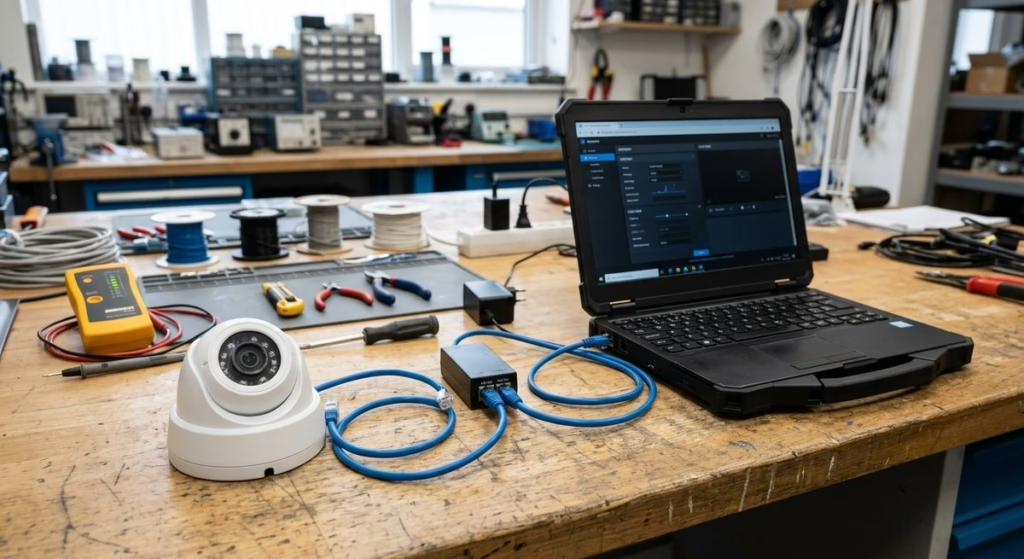
Before you condemn the camera, prove it. Take it down, connect it with a short known-good patch cord to a known-good PoE port or injector and a laptop. If it powers up, appears in the search tool and streams on its web page, the camera is fine and the fault is in the cable, port, switch or NVR settings. If it fails on the bench too, reset it to defaults with the manufacturer’s method and retest. Still dead? Then it is a warranty case.
Step-by-Step Diagnosis Flow
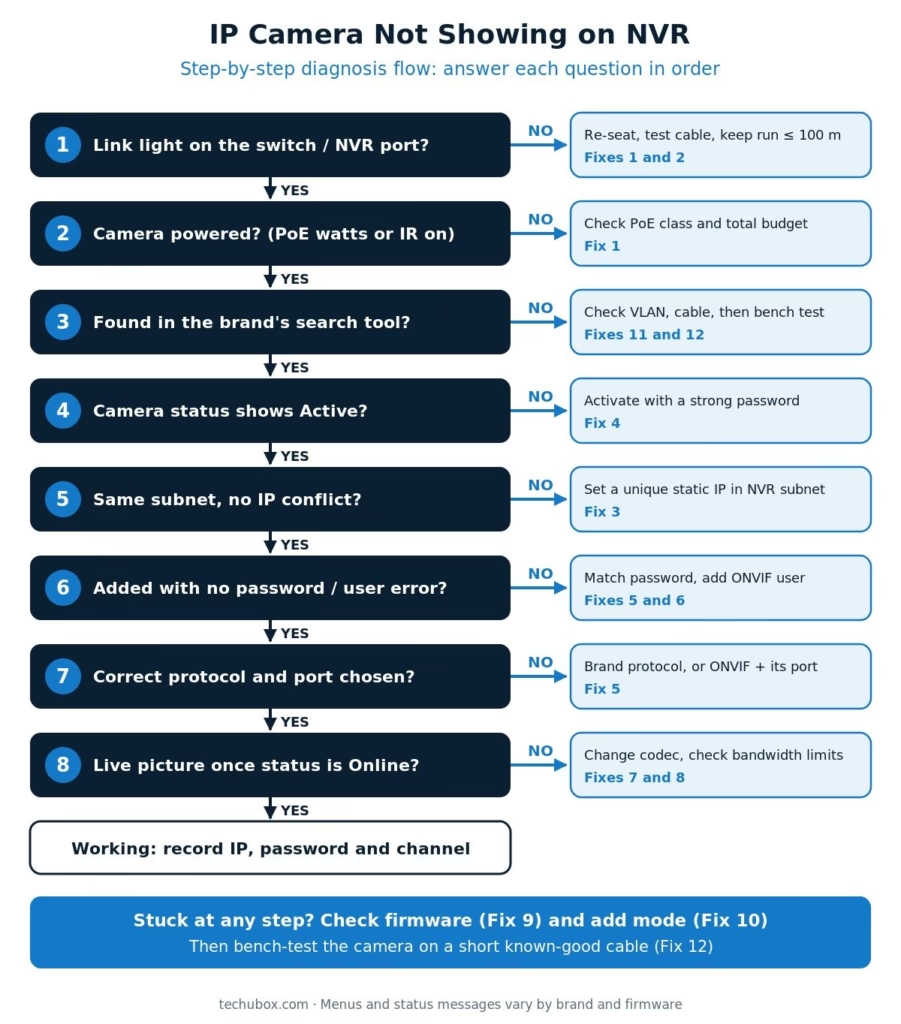
Follow these questions in order. Each “no” points you to the fix to apply. Each “yes” moves you to the next step.
- Link light on the switch or NVR port? No: re-seat, test the cable, keep the run within 100 m (Fixes 1 and 2).
- Camera powered? No: check PoE class, port and total budget (Fix 1).
- Camera found in the brand’s search tool? No: check the switch VLAN and cable, then bench-test (Fixes 11 and 12).
- Status shows Active? No: activate with a strong password (Fix 4).
- Same subnet as the NVR with no IP conflict? No: set a unique static IP (Fix 3).
- Added with no password or user error? No: match the password and create the ONVIF user (Fixes 5 and 6).
- Correct protocol and port chosen? No: use the brand protocol, or ONVIF with its port (Fix 5).
- Live picture once Online? No: change the codec and check bandwidth limits (Fixes 7 and 8).
Stuck at any step? Check firmware compatibility (Fix 9) and the add mode (Fix 10), then run the bench test (Fix 12).
Troubleshooting Table: Symptom to Fix
| Symptom | Likely cause | Fix |
|---|---|---|
| No link light, camera dead | Bad cable, no PoE, faulty port | 1, 2, 12 |
| Works by day, drops at night | PoE budget or voltage drop when IR turns on | 1, 2 |
| Not found in search tool | VLAN, cable or camera fault | 11, 12 |
| Found but shows Inactive | Camera not activated | 4 |
| Camera appears and disappears | IP conflict | 3 |
| Offline, username or password error | Wrong credentials or missing ONVIF user | 5, 6 |
| Offline, network unreachable | Wrong subnet, port or protocol | 3, 5 |
| Online but black tile | Codec or resolution not supported | 7, 9 |
| Cannot add more cameras | Incoming bandwidth or channel limit | 8 |
| PoE port camera not auto-added | Third-party camera or manual mode needed | 10 |
For wider issues such as recording gaps and poor night images, see our CCTV troubleshooting guide.
Prevent It on Your Next Job
- Prepare an IP plan and VLAN plan before installation. The Network and CCTV Designer helps you lay it out.
- Activate and address cameras on the bench before mounting them.
- Test and label every cable before the ceiling is closed.
- Calculate PoE budget and NVR bandwidth with margin.
- Update NVR firmware before commissioning new camera models.
Frequently Asked Questions
Why does my IP camera show “Offline” on the NVR?
Offline means the NVR cannot log in to or reach the camera. The usual causes are wrong credentials, wrong protocol or port, a different subnet, or an IP conflict. The status message after “Offline” usually tells you which one.
Can I connect a different brand of IP camera to my NVR?
Usually yes, through ONVIF, if both devices support it. Enable ONVIF on the camera, create the ONVIF user, and add it on the NVR using the ONVIF protocol. Some advanced features, such as smart events, may not work across brands.
What is the maximum cable length for a PoE IP camera?
The standard channel is 100 m including patch cords. I design for 90 m. For longer distances use fiber with a field switch or media converter, or a device with a supported extended-distance PoE mode.
Why is the camera Online but the screen is black?
This typically points to a codec or resolution the NVR cannot decode, such as a brand-specific H.265+ stream on a third-party NVR. Switch to H.264 or standard H.265 and check the NVR’s supported resolution.
Do I need to activate a Hikvision camera before adding it?
Yes, on current firmware. Activate it with a strong password through SADP, the web page, or the NVR’s activation option. An inactive camera cannot be added.
How do I know if the camera is faulty?
Run the isolation test. Connect it on the bench with a short known-good cable and PoE source. If it still fails to power up or appear in the search tool after a factory reset, it is likely a hardware fault.