
Crack the Code: ONVIF Profiles S, T, G, M and Your CCTV System
A perfect high-resolution security camera. which has every feature you require. But will it work with your video recording software? If you’ve ever faced this dilemma, you’re likely familiar with it. You need to know about ONVIF.
Think of ONVIF as the universal language of security cameras. It’s the standard that allows different brands to talk to each other. But not all ONVIF devices are created equal. The secret to true compatibility lies in understanding ONVIF Profiles.
In this guide, we’ll discuss these profiles—S, T, G, and M—so you can build a frustration-free security system.
What is ONVIF? The Universal Translator for Your CCTV Gear
ONVIF (Open Network Video Interface Forum) is a global industry forum that creates standards for IP-based security products. Before ONVIF, connecting a Bosch camera to a Dahua NVR was a nightmare of proprietary protocols.
ONVIF solved this. But to make standards manageable, they created Profiles—specific feature sets that a device promises to support. It’s a guarantee of interoperability. ONVIF
The ONVIF Profiles: Your Blueprint for Interoperability
Let’s break down each major profile, what it does, and why you need it.
Profile S: The Streaming Standard (The Foundation)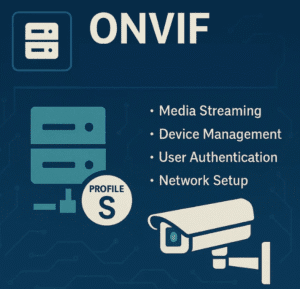
What it is: Profile S is the most common and fundamental profile. It’s all about video and audio streaming.
What it guarantees:
-
Live video streaming (H.264, MJPEG)
-
PTZ (Pan-Tilt-Zoom) control commands
-
Audio streaming (both one-way and two-way)
-
Basic device discovery and information
Who needs it? Every single camera and recorder in your system must support Profile S. It’s the non-negotiable foundation. If a device doesn’t support at least Profile S, walk away.
Real-World Example: When you add a camera to software like Milestone XProtect or Blue Iris, the software uses Profile S to automatically find the camera, authenticate, and generate the correct RTSP stream URL (e.g., rtsp://192.168.1.100/onvif/profile1/media.smp). No more guessing manufacturer-specific URLs.
Profile T: The Modern Streaming Upgrade (The Future-Proof Choice)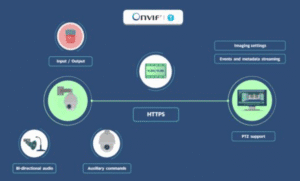
What it is: Profile T is the next-generation version of Profile S. It adds support for modern video compression and advanced features.
What it guarantees (on top of Profile S):
-
H.265 (HEVC) video compression: Cuts bandwidth and storage use by ~50% compared to H.264.
-
Advanced video scaling: Request a stream at a specific resolution.
-
Better compression settings: More control over encoder settings.
Who needs it? Anyone buying new cameras? Profile T is the new baseline for modern systems. Insist on it for all new purchases to save significantly on storage costs and network load.
Profile M: The Metadata Profile (The “Brains”)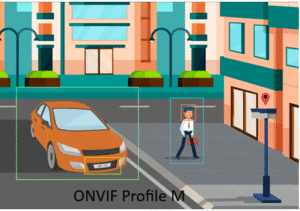
What it is: Profile M handles intelligent metadata. This is the data about the video, like motion detection events, analytics, and object classification.
What it guarantees:
-
Standardized metadata streams (e.g., “motion detected in this zone”).
-
Configuration of analytics rules.
-
Communication of events like line crossing, intrusion detection, or object counting.
Who needs it? If you want to use smart analytics (like people or vehicle detection) and have those events trigger actions in your VMS, you need Profile M. It prevents vendor lock-in, allowing a camera from Brand A to send analytics to a VMS from Brand B.
Real-World Example: A Profile M camera can send a standardized message to your software when it detects a person in a restricted area after hours. The software can then trigger an alarm, send an email, or start recording—all without brand-specific headaches.
Profile G: The Recording & Playback Profile (For NVRs)
What it is: Profile G is primarily for recordings and storage management. It’s crucial for the back-end of your system.
What it guarantees:
-
Searching and retrieving recorded video based on time or events.
-
Playback controls (play, pause, seek).
-
Downloading and exporting video clips.
Who needs it? This is essential for your Network Video Recorder (NVR) or VMS software. It ensures that any playback client (like a mobile app or desktop software) can reliably find and play back footage from the recorder, regardless of who made the camera.
How to Choose the Right ONVIF Profiles for Your Project
Use this simple checklist for your next security system installation or upgrade:
-
For Basic Functionality: Every device must support Profile S. This is mandatory.
-
For New Projects & Efficiency: Prioritise cameras and recorders that support Profile T. This is the modern standard for video streaming.
-
For Smart Analytics: Ensure cameras and your VMS support Profile M to use advanced, vendor-agnostic analytics and events.
-
For reliable playback, your central recording software (NVR/VMS) must support Profile G for standardised recording search and retrieval.
Pro Tip: Always check the official product datasheet or manufacturer’s website. Don’t just look for “ONVIF compliant”; look for the specific mention of “Conformant with Profile T” or “Supports Profiles S, T, and M.”
Conclusion: Build Smarter, Compatible Systems
Understanding ONVIF profiles enables you to transition from a hopeful installer to a confident system architect. You’re no longer guessing about compatibility; you’re guaranteeing it.
By specifying devices based on their ONVIF profiles—S for streaming, T for modern efficiency, M for intelligence, and G for storage—you build robust, flexible, and future-proof security systems that work seamlessly together.
Searching for compatible security solutions? Understanding ONVIF profiles is the first step to making an informed purchase. Keep this guide handy to ensure your next camera or recorder integrates perfectly into your ecosystem.
FAQ Section
Q: Can a camera support multiple ONVIF profiles?
A: Absolutely! Most modern cameras support several profiles simultaneously. A high-end camera might support S, T, and M, handling streaming, efficient codecs, and analytics all at
Q: Is ONVIF the same as RTSP?
A: No, but they work together. RTSP is the protocol that delivers the video stream. ONVIF is the framework that discovers the device, authenticates, and, crucially, tells you the correct RTSP URL to use.
Q: What is the best ONVIF profile?
A: There is no single “best” profile. It depends on your needs. Profile T is the most important for new camera purchases due to its H.265 support. For a full-featured system, you’ll want a combination of T (streaming), M (events), and G (playback).
Q: How do I check if my camera supports a specific profile?
A: The best way is to check the official specification sheet from the manufacturer. You can also use ONVIF’s official conformance list or network testing tools like ONVIF Device Manager to see what profiles a device exposes on your network.
Working with ONVIF on site
How to enable ONVIF on a camera
Many cameras ship with ONVIF switched off or with a separate ONVIF user. In the camera’s web interface, look for the integration or platform access settings (often under Network or System), enable ONVIF, and create an ONVIF user with a strong password. Some brands use the same login as the web interface; others need a dedicated ONVIF account. Make sure the camera’s date and time are correct, because ONVIF authentication can fail when the camera and recorder clocks are far apart.
Testing with ONVIF Device Manager
ONVIF Device Manager (ODM) is a free, open-source Windows tool that discovers ONVIF devices on the local network and shows what they expose: device information, stream profiles and RTSP URLs, PTZ controls and events. Before blaming the NVR or VMS, check the camera in ODM. If ODM cannot see it, look at the subnet, multicast discovery (WS-Discovery) being blocked, the ONVIF switch in the camera, or the ONVIF user. If ODM can see it but the recorder cannot, compare the profiles and features the recorder supports.
Do all IP cameras support ONVIF?
No. Most professional IP cameras do, but consumer and cloud-only cameras often do not, and some brands support only part of a profile. The reliable check is the official ONVIF conformant products list, which shows which profiles a specific model and firmware are declared conformant with. A datasheet that just says “ONVIF” without naming profiles is not enough for a project specification.
When ONVIF is not enough
ONVIF gives a common baseline. Advanced features such as some analytics events, smart codecs, two-way audio settings or camera-specific configuration may only work fully with the manufacturer’s own protocol or a VMS driver. On mixed-brand projects, list the features you need and confirm them with the NVR or VMS supplier, then test them at commissioning.

Pingback: NVR The Powerhouse - techubox.com