
How do you connect the IP camera to the Soyal access control system?
701 Client Software supports any IP camera:
- 701 Client Software supports multiple IP Cameras
- Capture a picture using an IP camera at an event and save it.
- Upload the picture to [User Card Edit] for Identification using the captured picture by IP Camera
- Automatically capture user pictures while enrolling This can be used for events too.
701 Client software of the soyal system can Connect TO 2 IP CAMERAS by editing the registry.
How To Connect IP Camera to the Software:
Use “Regedit” on your PC to enter the Windows Registry editor.
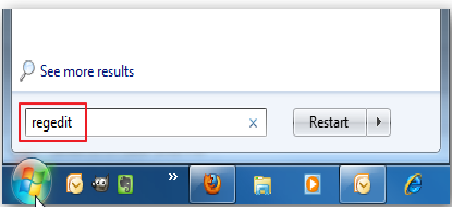
Enter Soyal Client Software as bellow
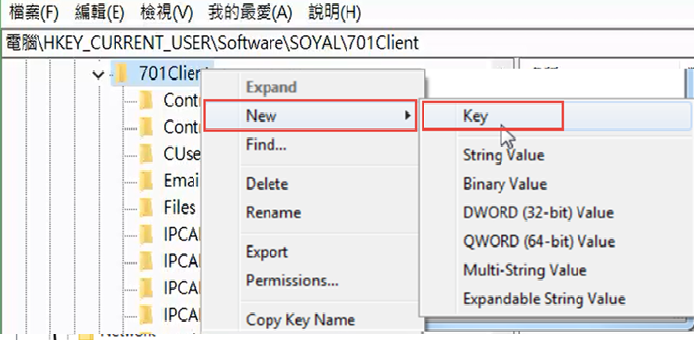
Step 1. Go to HKEY_CURRENT_USER > Software > SOYAL > 701Client (on older installs: HKEY_CURRENT_USER > Software > 701Client).

Right-click on 701Client as shown in the picture and select [New] > [Key]. Please create a new Value Folder and rename it to IPCAM0.
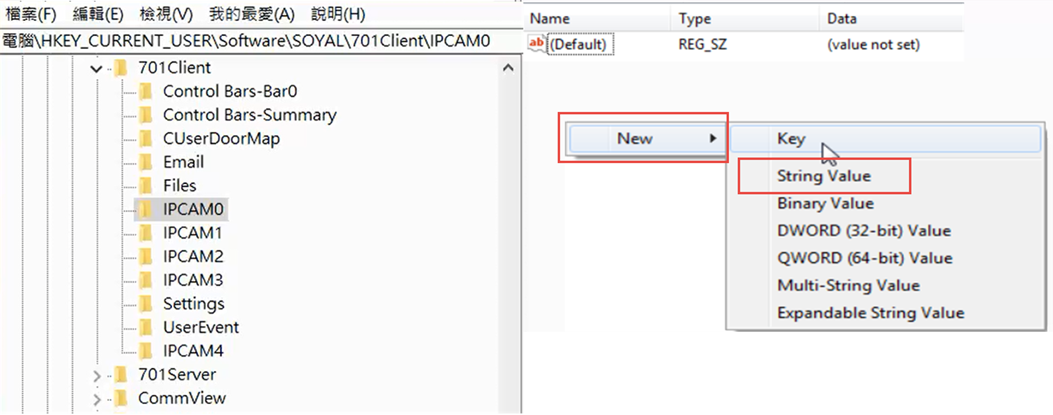
Step 2. After successfully creating the [Key] and renaming it to IPCAM0, right-click and select [New] > select [String Value]. Please See the below Pic.
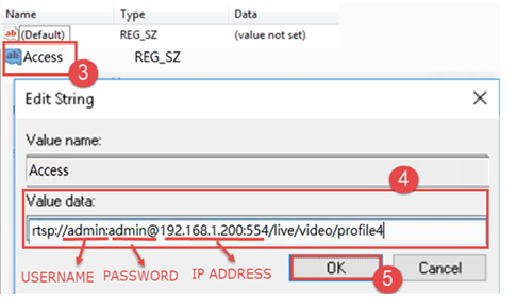
Step 3. Rename the String Value to ‘Access’ and double-click to edit the value data.
Step 4. Insert the RSTP URL of the camera to connect it to 701 Client software. The RSTP URL will seem like in the picture, for more details please CLICK to read more on RSTP.
Step 5. Click ‘OK’
Step 1. Right-click and select [New] > select [DWORD (32-bit) Value]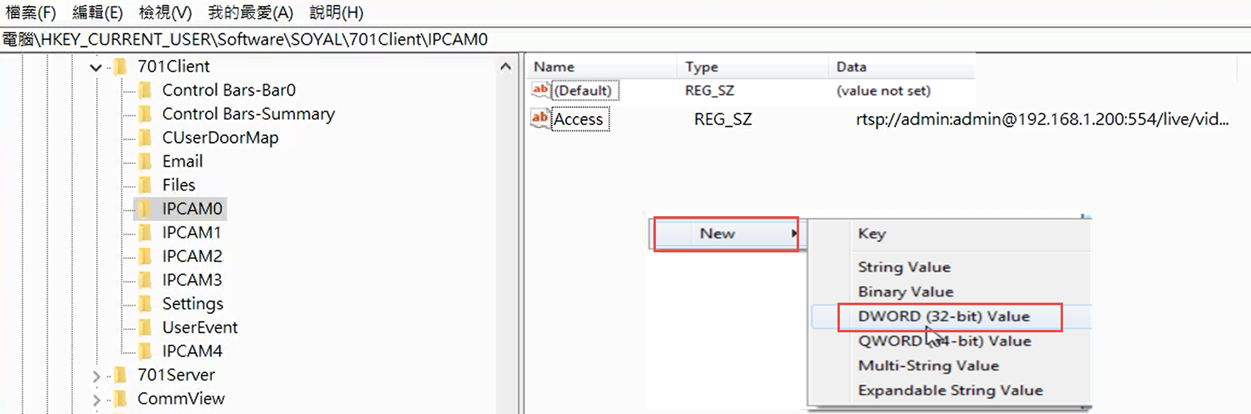
Step 2. Rename the Value into DOOR and double-click to edit. Select Value Data 1 (for DOOR NO 1 ) & so on and click OK.
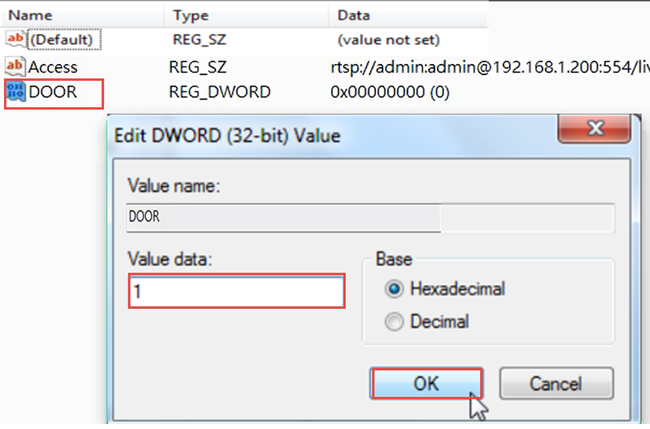
Step 1. Right-click and select [New] > select [DWORD (32-bit) Value]
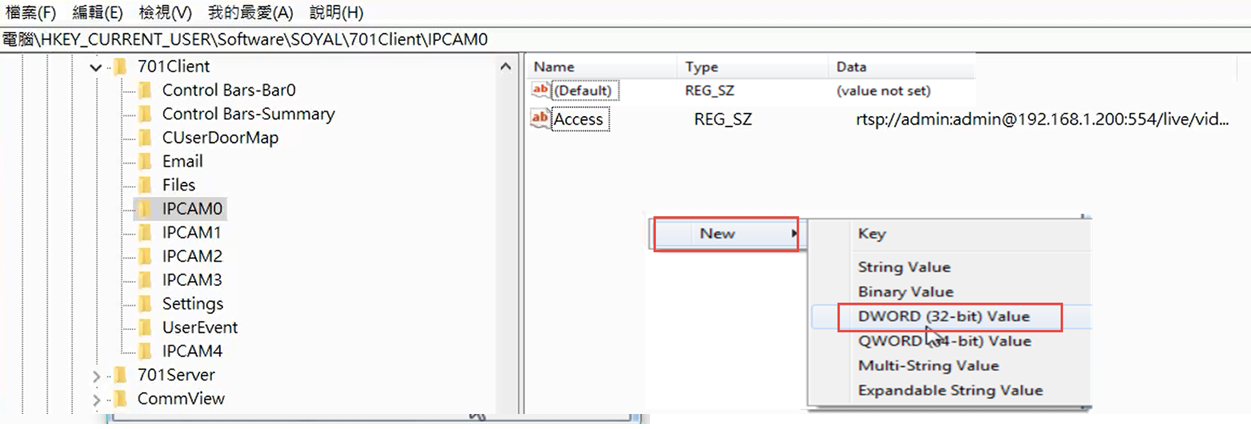
Step 2. Rename the Value into NODE and double-click to edit. Select Value Data 1 (for NODE ID 1) and click OK

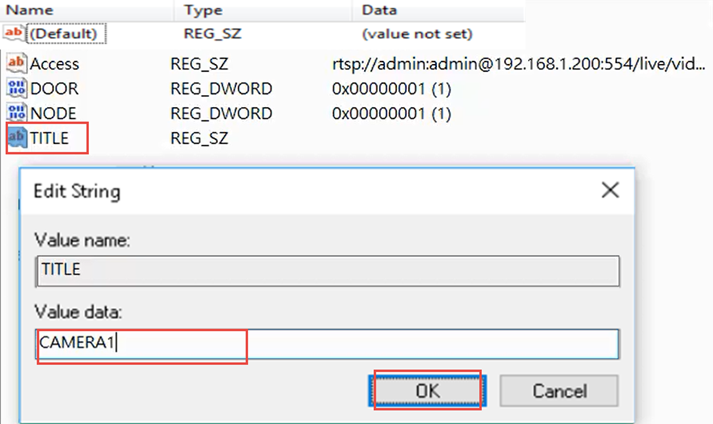
Step 1. Select [New] > select [String Value].
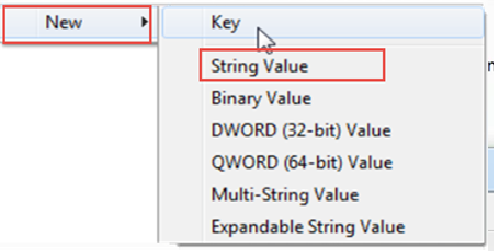
Step 2. Rename the String Value into ‘TITLE’ and double click to edit the value data into CAMERA1 and click OK.
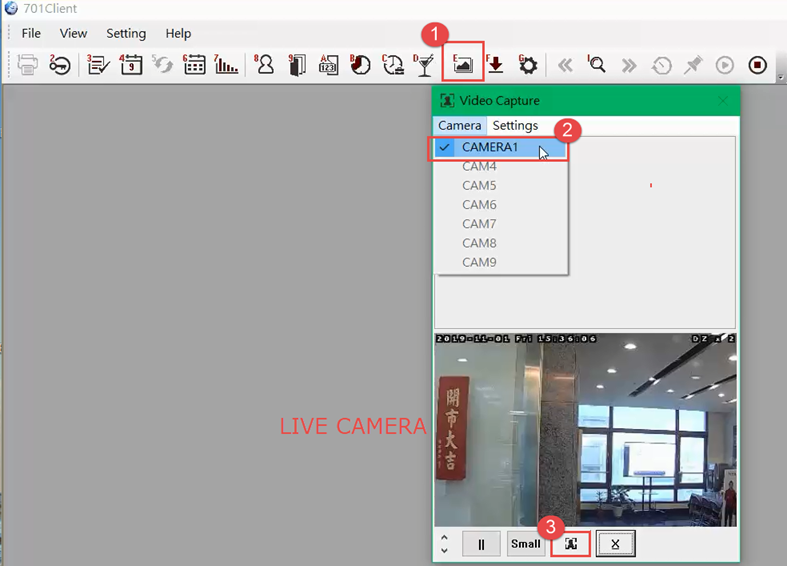
Step 1. Open 701 Client Software and select [E User Picture]
Step 2. Select which camera you want to choose for capturing.
Ps: Sometimes the live camera is lagging, Please adjust your Camera frame rate FPS and quality
Step 3. Click on the capture logo.to capture live images.
Step 4. Select the location to save the captured picture.
How to Upload a picture to [User Card Edit] using a captured picture by a Connected IP Camera?
Step 1. Select [8 User Card Edit]
Step 2. Double click the QRCode (it will be between QRCode or User Picture to be displayed)
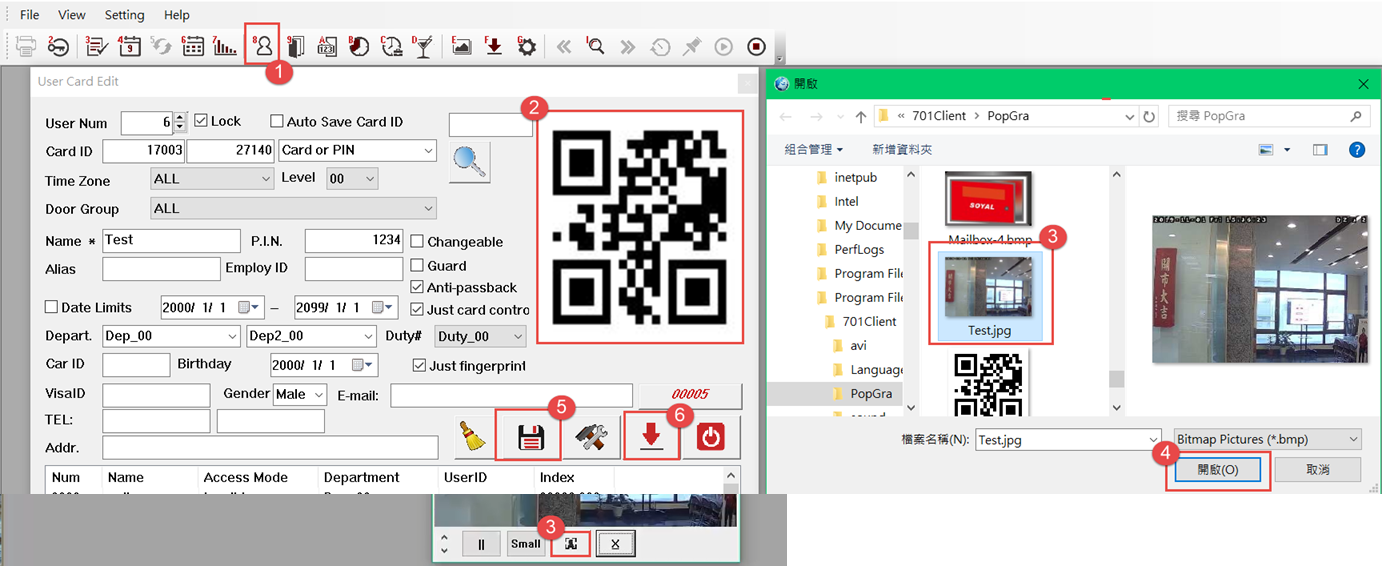
Step 3. Select the picture that you want to set as the user picture. You can choose the picture from the captured picture using an IP Camera that has been saved to your PC
Step 4. Select ‘OPEN’
Step 5. Select ‘SAVE’
Step 6. Select ‘DOWNLOAD’
Before You Edit the Registry: Pre-Check List
Most failed camera links in 701 Client are network or stream problems, not registry mistakes. Check these points first and the registry steps above usually work on the first try.
- Software version: Soyal lists IP camera support for 701 Server 9.01 (V1910XX) and later, paired with 701 Client 9.01 (build 191024) and later. Older builds will ignore the camera keys.
- Same subnet: Give the camera a static IP in the same subnet as the 701 Client PC, for example camera
192.168.1.64and PC192.168.1.20with mask255.255.255.0. If they sit on different VLANs, make sure routing and firewall rules allow the traffic. - Ping test: Run
ping 192.168.1.64from the client PC. No reply means the problem is cabling, PoE, or addressing. - RTSP enabled on port 554: Confirm RTSP is switched on in the camera’s web page and note the port. 554 is the default, but some installers change it.
- ONVIF: Not needed for a direct RTSP link, but enabling it lets tools like ONVIF Device Manager discover the camera and show its real stream URL.
- Credentials: Create a dedicated viewer account on the camera. Avoid special characters such as
@,:or#in the password, because they break the URL format. - Codec: Set the stream you will use to H.264. H.265 saves bandwidth, but older Windows PCs often lack a decoder for it, so the window stays black.
- Test in VLC first: Open the URL in VLC (Media > Open Network Stream). If VLC cannot play it, 701 Client will not either.
Typical RTSP URL Formats by Camera Brand
These are common formats seen in the field. Treat them as starting points and confirm the exact path in the manufacturer’s documentation or firmware notes, since paths change between models and firmware versions.
- Hikvision (example):
rtsp://user:password@192.168.1.64:554/Streaming/Channels/101(main stream),.../102(sub-stream) - Dahua (example):
rtsp://user:password@192.168.1.108:554/cam/realmonitor?channel=1&subtype=0(main),subtype=1(sub) - Uniview (example):
rtsp://user:password@192.168.1.13:554/media/video1(main),video2(sub) - Axis (example):
rtsp://user:password@192.168.1.90/axis-media/media.amp - Hanwha Wisenet (example):
rtsp://user:password@192.168.1.100:554/profile2/media.smp
For access control snapshots, the sub-stream is usually the better choice. It loads faster, uses less CPU on the guard PC, and reduces the live-view lag mentioned earlier.
Linking the Camera to Door and Reader Events
The DOOR and NODE values you created tell 701 Client which controller and door the camera belongs to. When a card, PIN, fingerprint or face is used at that door, the client can grab a still image at the moment of the event. Menu names and screen layout differ between 701 Client versions, so use the steps below as a general guide.
- Match the
NODEvalue to the controller’s Node ID and theDOORvalue to the door number set in the software. A wrong number means the snapshot is taken for the wrong door, or not at all. - For a second camera, repeat the same values under a second key (Soyal’s own guide uses
IPCAM1). Soyal states that 701 Client supports up to two IP cameras. - Open the photo display window in 701 Client. When someone presses a card at the linked door, the live picture and captured picture should appear next to the user’s stored photo for visual comparison.
- Check the client’s picture folder. Soyal’s Chinese guide shows captures saved under
C:Program Files (x86)701ClientpopGra; your path may differ by version and install drive. - For full video verification, keep the NVR recording continuously and use the event time from the 701 transaction log to find the clip. This is why the client PC, controller and NVR must all use the same time source.
Troubleshooting Table
| Symptom | Likely Cause | Fix |
|---|---|---|
| Black or blank camera window | Wrong RTSP path or H.265 stream | Test the URL in VLC; switch the stream to H.264 |
| “Connection failed” or no image at all | Different subnet, firewall, or port 554 blocked | Ping the camera; allow port 554 in Windows Firewall |
| Camera works for one Windows user only | Keys sit under HKEY_CURRENT_USER |
Repeat the registry keys while logged in as each operator |
| Camera list empty after restart | Key created in the wrong folder | Confirm the IPCAM key sits inside the 701Client key (some installs place it under SoftwareSOYAL701Client) |
| Live view lags several seconds | Main stream at high resolution | Use the sub-stream; lower FPS and bitrate |
| Snapshot taken at wrong door | DOOR or NODE mismatch |
Match values to controller Node ID and door number |
| Authentication error | Special characters in password | Use a viewer account with a simple alphanumeric password |
Frequently Asked Questions
Can I connect more than two cameras to 701 Client?
Soyal’s documentation lists two IP cameras as the supported limit. For larger sites, contact your Soyal distributor or handle verification on the NVR or VMS side.
Does the camera need to be the same brand as the NVR?
No. 701 Client pulls the stream directly over RTSP, so any camera with a working RTSP stream can be used.
Is H.265 supported?
It depends on the decoders installed on the client PC. H.264 is the safer choice for the stream 701 Client uses.
Do I need ONVIF enabled?
Not for the link itself, which uses RTSP. ONVIF is still useful for finding the correct stream URL with discovery tools.
Related tools
Planning cameras, switches and access control on the same network? Use the free Network & CCTV Designer on techubox.com to lay out IP addressing, PoE switches and camera positions before installation.

There is a quiet artistry in your writing. Sentences are crafted with care, forming patterns that are harmonious and enriching without being forced.