How to Calculate Network Bandwidth for 10x 4K H.265+ CCTV Cameras — A Complete Step-by-Step Guide
Introduction
Imagine investing thousands of dollars in a state-of-the-art 4K surveillance system for your business or home, only to find that your video feeds are stuttering, frames are dropping, and your Network Video Recorder (NVR) keeps disconnecting. This nightmare scenario is rarely the fault of the cameras themselves; instead, it is almost always a symptom of a poorly planned and congested network.
CCTV bandwidth calculation is the most critical step in designing a reliable security system. Without it, you are essentially flying blind. When you move from standard 1080p (2 megapixels) to 4K (8 Megapixels) resolution, the amount of data being pushed through your cables doesn’t just double—it increases exponentially. If your network infrastructure—the “pipes” of your system—isn’t large enough to handle this massive flow of information, the entire system will fail exactly when you need it most.
Common mistakes like underestimating the impact of sub-streams, ignoring network protocol overhead, or choosing the wrong type of Ethernet switch lead to congested networks and critical recording failures. In this guide, we will break down the complex world of bitrates, compression algorithms, and codecs into a simple, educational roadmap. We will teach you the fundamental concepts of data transmission and provide a step-by-step calculation for a typical high-end installation: ten 4K H.265+ cameras. By the end of this post, you will know exactly how to calculate the bandwidth for your own system and how to choose the professional-grade equipment needed to support it.
What is Network Bandwidth?
Before we dive into the maths, we need to establish a clear understanding of what bandwidth actually is. In the context of IP (Internet Protocol) cameras, bandwidth refers to the volume of data that can be transmitted over a network connection in a given amount of time.
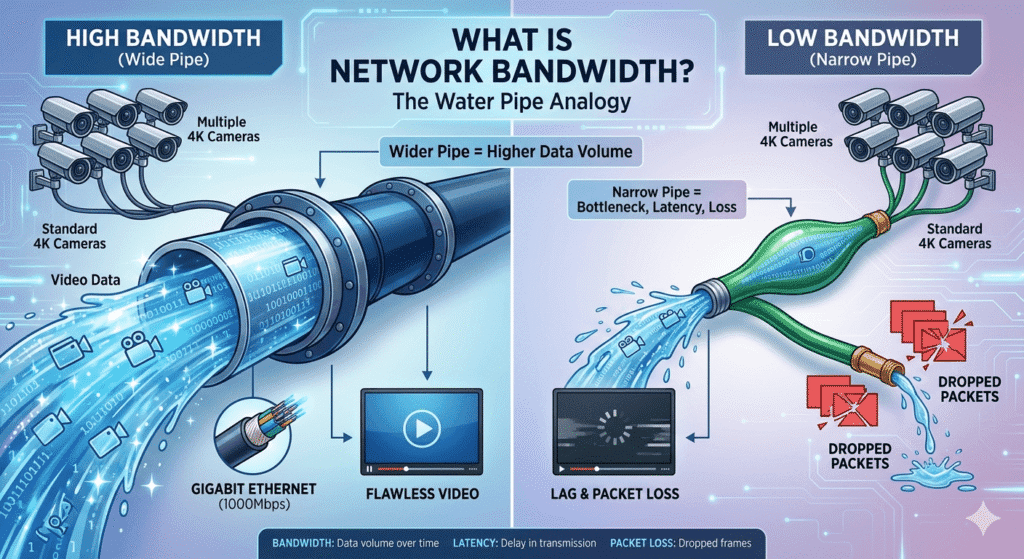
To make this concept easy to grasp, let’s use the classic water pipe analogy. Think of your network cables as water pipes and the video data from your cameras as the water flowing through them. Bandwidth represents the diameter of that pipe. A wider pipe (higher bandwidth) can carry more water (more data) at once.
If you try to force the water from ten high-pressure fire hoses (your 4K cameras) through a single narrow garden hose (a standard 100Mbps “Fast Ethernet” switch), the pressure will build up, the flow will slow down, and eventually, the water simply won’t get through. In networking terms, this results in “latency” (delay) and “packet loss” (dropped frames).
Bits vs. Bytes: Clearing the Confusion (Mbps vs. MBps)
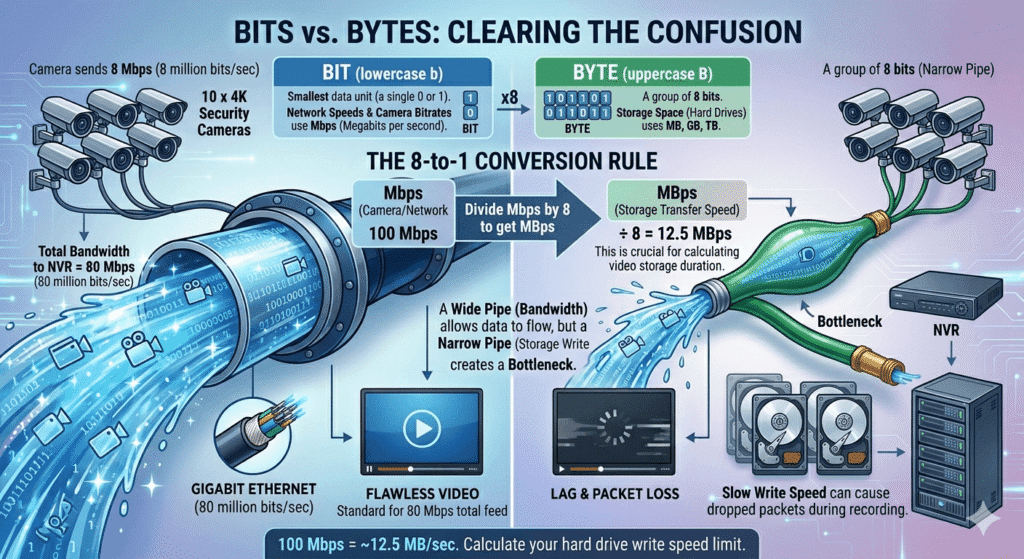
One of the most common points of confusion for students and even some IT professionals is the difference between a “bit” and a “byte”. Understanding this distinction is vital because cameras and networks use one unit, while hard drives use another.
•Bit (represented by a lowercase ‘b’): This is the smallest unit of digital data—a single 1 or 0. Network speeds and camera bitrates are almost always measured in megabits per second (Mbps).
•Byte (represented by an uppercase ‘B’): A group of 8 bits. This is the unit used to measure storage space on hard drives (HDDs), such as megabytes (MB), gigabytes (GB), or terabytes (TB).
The 8-to-1 Rule: To convert network speed (Mbps) to storage speed (MBps), you simply divide by 8. For example, a 100 Mbps connection can transfer roughly 12.5 megabytes of data every second. This is a crucial calculation when you are trying to figure out how many days of video you can fit on an 8TB hard drive.
When you see a camera spec sheet that says “8 Mbps”, it means the camera is sending 8 million bits of data every second. If you have ten of these cameras, you are sending 80 million bits per second (80 Mbps) to your NVR.
Factors That Affect CCTV Camera Bandwidth
Calculating bandwidth isn’t just about counting cameras; it’s about understanding the complex variables that determine how much data each camera generates. Each of these six factors acts as a multiplier or a divider in your final calculation.
1. Resolution (The Number of Pixels)
Resolution is the most obvious factor. A 4K camera (also known as 8 Megapixels or 2160p) captures an image that is 3840 pixels wide and 2160 pixels high. This results in roughly 8.3 million pixels per frame.
Compare this to a standard 1080p camera, which has only 2 million pixels. Because a 4K camera has four times the detail, it naturally generates much more data. In the world of CCTV, more pixels mean more clarity, but they also mean you need a much “wider pipe” to carry that information.
2. Frame Rate (FPS – Images per Second)
Frame rate refers to how many still images the camera captures every second to create the illusion of motion. While 30 fps (frames per second) is considered “real-time” fluid motion (like what you see on TV), most professional security applications use 15 to 20 fps.
Reducing the frame rate from 30 to 15 can cut your bandwidth usage nearly in half without sacrificing the ability to identify faces or license plates. In fact, for static environments like a warehouse at night, even 10 fps is often sufficient.
3. Compression and Codecs (The Efficiency Engine)
This is the “magic” that shrinks massive video files into manageable streams. Older codecs like H.264 (AVC) are widely compatible but relatively inefficient for high resolutions.
Modern codecs like H.265 (HEVC) and its smarter brother, H.265+, use advanced mathematical algorithms to compress the video. They identify “static” parts of the image (such as a wall or a floor) and transmit only the pixels that actually move. Using H.265+ can save up to 80% in bandwidth compared to H.264, making 4K surveillance practical for standard networks.
4. Scene Complexity (Motion and Detail)
Bandwidth usage is not static; it changes based on what the camera sees.
•Low Complexity: A camera pointed at a blank white wall in a quiet hallway uses very little bandwidth because almost nothing is changing between frames.
•High Complexity: A camera pointed at a busy highway with hundreds of moving cars, swaying trees, and rain will require a much higher bitrate. The encoder has to work much harder to describe all those changing pixels.
5. Bitrate Type: CBR vs. VBR
This setting determines how the camera manages its data output:
•CBR (Constant Bitrate): The camera is forced to use a fixed bandwidth (e.g., 8 Mbps) regardless of whether there is motion. This is predictable for network planning but extremely wasteful during quiet periods.
•VBR (Variable Bitrate): The camera uses more bandwidth during busy motion and drops to a very low bitrate when the scene is still. This is the professional standard for CCTV because it maximizes storage efficiency.
6. Number of Streams (Main Stream vs. Substream)
This is the most common factor that beginners forget to calculate. Modern IP cameras typically send at least two simultaneous video streams:
•Main Stream: The high-resolution, high-bitrate stream used for recording onto the NVR hard drives.
•Sub Stream: A low-resolution (usually D1 or CIF) stream used for multi-camera live viewing on a monitor grid or a mobile phone app.
While a single sub-stream might only use 0.5 to 1 Mbps, when you have ten cameras, that’s an extra 10 Mbps of “hidden” traffic that can clog a poorly designed network.
Typical Bitrate Table (Reference Guide)
To help you plan your next project, here is a reference table showing typical bitrates for various resolutions and codecs at a standard 20 fps.
Note: These are estimates. Real-world bitrates will fluctuate based on scene complexity and your specific camera settings.
H.264 vs. H.265 vs. H.265+ — What’s the Difference?
Understanding the evolution of video compression is the key to mastering professional CCTV design. Video compression works by identifying and removing “redundancy”—information that is repeated or unnecessary for the human eye to perceive detail.
In a typical video stream, two types of frames work together:
•I-Frames (Intra-coded): These are complete images of the entire scene, similar to a high-quality JPEG photo. They are “heavy” in data because they contain every single pixel.
•P-Frames (Predicted): These are the “smart” frames. Instead of sending a whole new image, they only record the changes from the previous frame. If a person walks across a room, the P-frame only sends the data for the moving person, not the static walls behind them.
The Evolution of the Codec
H.264 (Advanced Video Coding – AVC):
Launched in 2003, H.264 was the gold standard for over a decade. It uses 16×16 pixel “macroblocks” to process video. While it works perfectly for 1080p, it struggles with 4K. To maintain 4K quality, H.264 requires a massive bitrate (often 16-20 Mbps), which quickly overwhelms standard networks and fills up hard drives.
H.265 (High Efficiency Video Coding – HEVC):
Released in 2013, H.265 was designed specifically for the 4K and 8K era. It introduced “Coding Tree Units” (CTUs) that can process blocks of pixels up to 64×64. This allows the encoder to be much more efficient at describing large areas of similar colour (like a blue sky). On average, H.265 provides the same visual quality as H.264 at half the bitrate.
H.265+ (Smart Codec):
H.265+ is a proprietary enhancement (pioneered by brands like Hikvision) that takes efficiency to the extreme. It uses three key technologies:
1.Prediction Encoding based on a background model: It creates a long-term reference image of the static background.
2.Background Noise Suppression: It identifies and removes the “digital grain” in dark areas that usually wastes bandwidth.
3.Long-term Bitrate Control: It intelligently manages data flow over 24 hours.
The result? H.265+ can offer up to 80% bandwidth savings over H.264.
Bandwidth and Storage Savings Comparison
The Bandwidth Calculation Formula
To calculate the total load on your network, use this professional formula:
Total Bandwidth = [(Main Stream Bitrate × Qty) + (Substream Bitrate × Qty)] × 1.2 Overhead
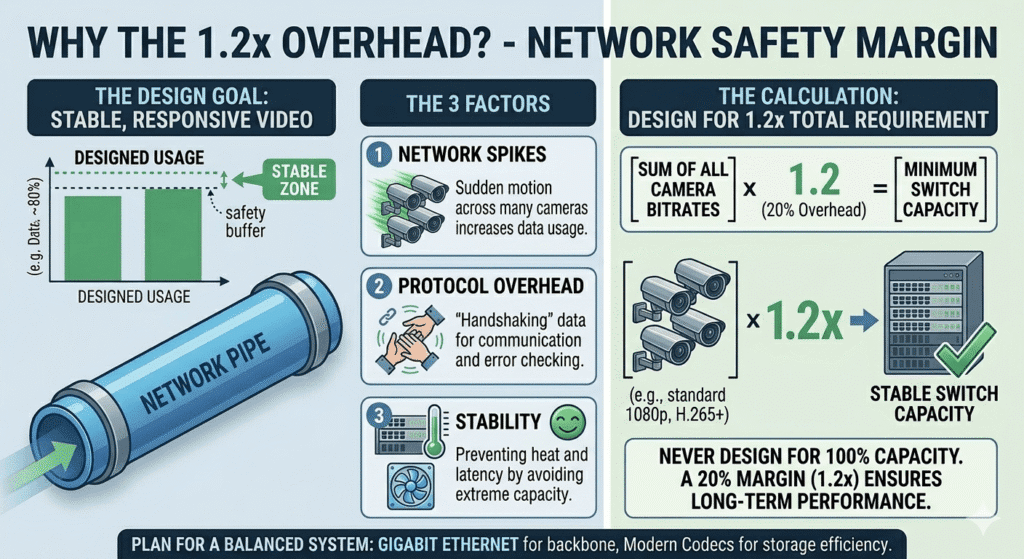
Why the 1.2 Overhead?
In networking, we never design for 100% capacity. We add a 20% safety margin (1.2x) to account for:
1.Network Spikes: Sudden motion in all cameras at once.
2.Protocol Overhead: Small amounts of data used for network “handshaking”.
3.Stability: Preventing the switch from running at its absolute limit, which causes heat and latency.
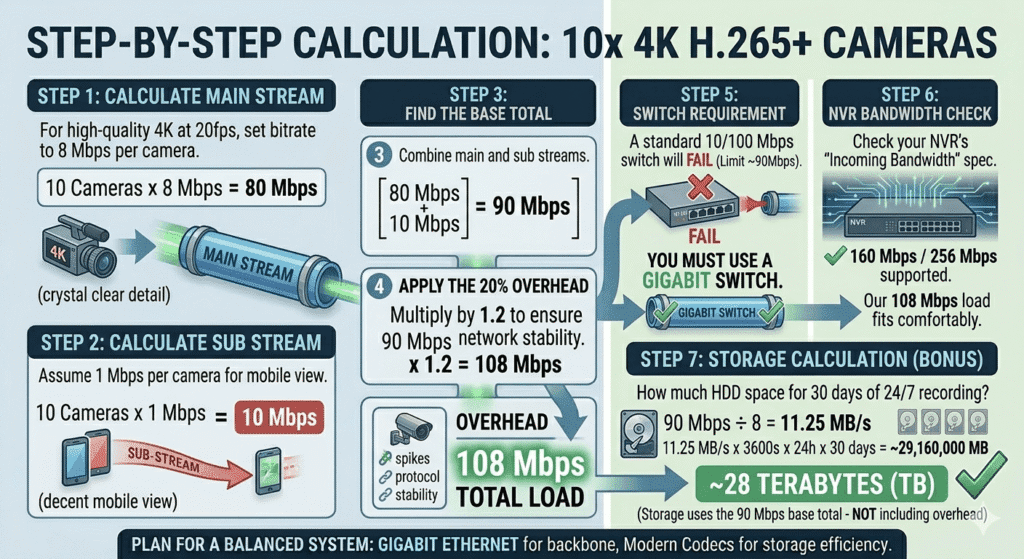
Step-by-Step Calculation: 10x 4K H.265+ Cameras
Let’s walk through the math for a 10-camera system using the most efficient settings.
Step 1: Calculate Main Stream
For a high-quality 4K image at 20fps using H.265+, we will set the bitrate to 8 Mbps per camera (this ensures crystal clear detail even during motion).
10 Cameras × 8 Mbps = 80 Mbps
Step 2: Calculate Sub Stream
Even though we view them small, sub-streams add up. Let’s assume 1 Mbps per camera for a decent mobile view.
10 Cameras × 1 Mbps = 10 Mbps
Step 3: Find the Base Total
Combine the main and sub streams.
80 Mbps + 10 Mbps = 90 Mbps
Step 4: Apply the 20% Overhead
Multiply by 1.2 to ensure network stability.
Step 5: Switch Requirement
A standard 10/100 Mbps switch will FAIL here. Even though 108 Mbps is close to 100, the physical limit of a 100Mbps port is usually around 90Mbps of actual data. You MUST use a Gigabit (1000 Mbps) Switch.
Step 6: NVR Bandwidth Check
Check your NVR’s “Incoming Bandwidth” spec. Most 16-channel NVRs support 160 Mbps or 256 Mbps. Our 108 Mbps load fits comfortably within these limits.
Step 7: Storage Calculation (Bonus)
How much hard drive space do you need for 30 days of 24/7 recording?
Using the 90 Mbps base total (we don’t include overhead for storage):
•90 Mbps ÷ 8 = 11.25 Megabytes per second
•11.25 MB/s × 3600s × 24h × 30 days = ~29,160,000 MB
•Result: ~28 Terabytes (TB)
(Note: Using H.265+ smart codecs can often reduce this to ~25TB in real-world scenarios with low nighttime motion).
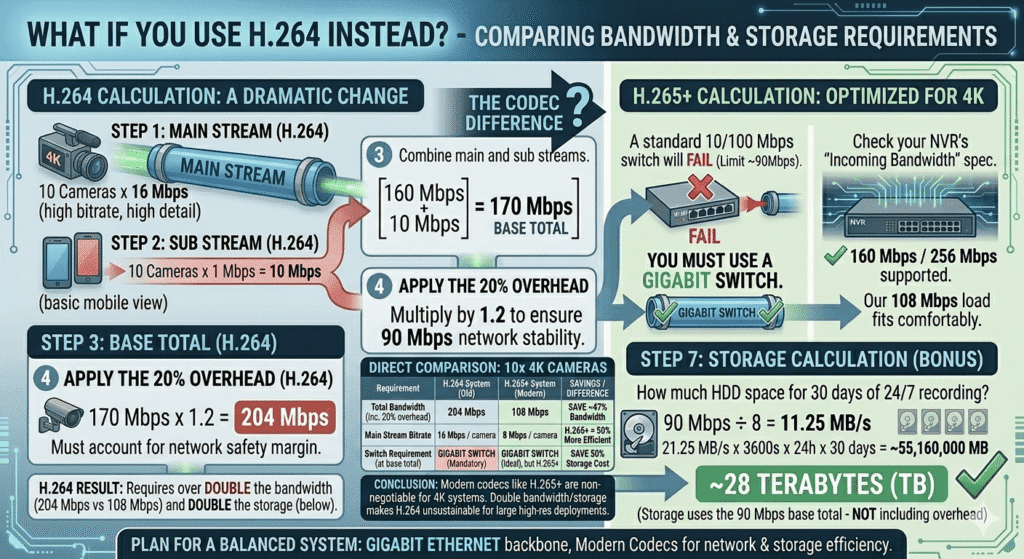
What If You Use H.264 Instead?
If you chose older H.264 cameras, the math changes drastically:
•Main Stream: 10 × 16 Mbps = 160 Mbps
•Sub Stream: 10 × 1 Mbps = 10 Mbps
The Difference: H.264 requires double the bandwidth and double the storage of H.265+. This is why modern codecs are non-negotiable for 4K systems.
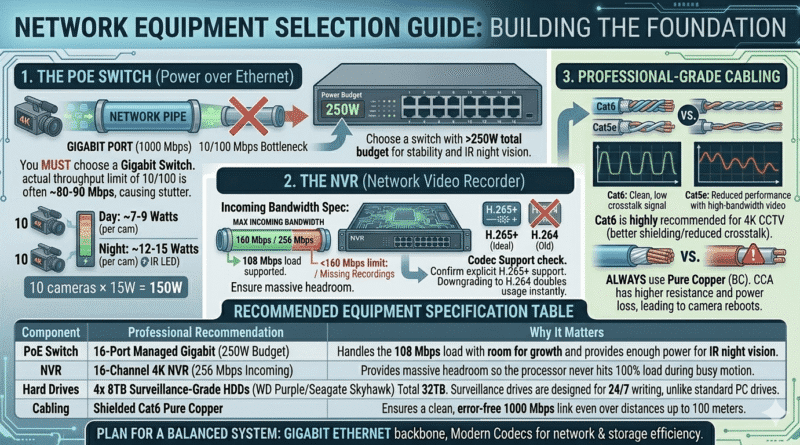
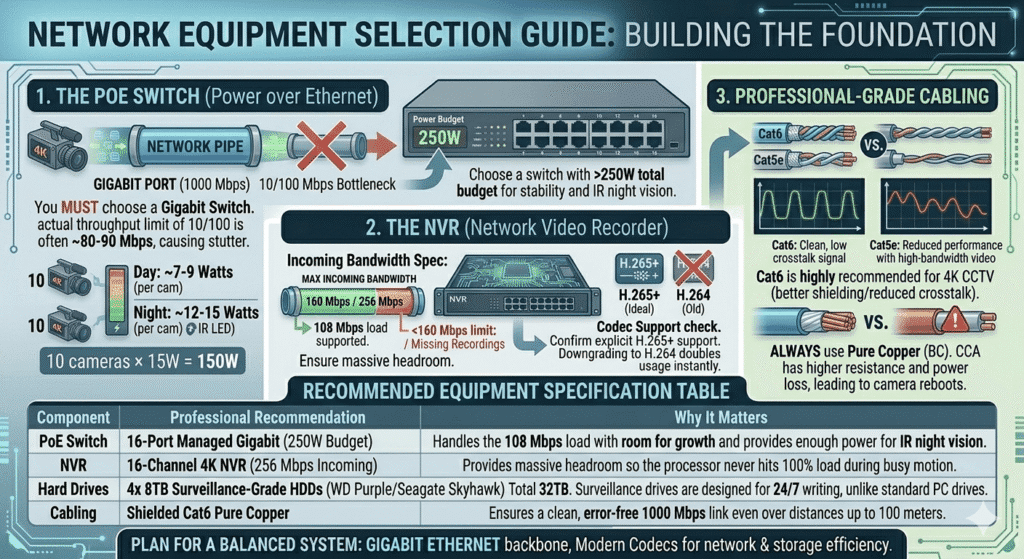
Network Equipment Selection Guide: Building the Foundation
Once you have done the math, you need the physical infrastructure to support it. Choosing the right hardware is just as important as the calculation itself. A single “bottleneck” in your network can render your high-end 4K cameras useless.
1. The PoE Switch (Power over Ethernet)
For a system with 10x 4K cameras, you need a professional-grade switch. Here is what to look for:
•Port Speed: You MUST choose a gigabit switch (10/100/1000 Mbps). While a 10/100 Mbps switch might seem “fast enough” on paper, its actual throughput is often limited to 80-90 Mbps, which will cause your 108 Mbps stream to stutter.
•PoE Power Budget: 4K cameras are power-hungry because their internal processors have to work hard to encode 8 million pixels. A typical 4K camera draws about 7-9 Watts during the day, but this can jump to 12-15 Watts at night when the infrared (IR) LEDs turn on.
•Calculation: 10 cameras × 15W = 150W. Always choose a switch with a total power budget of at least 250W to ensure stability and longevity.
2. The NVR (Network Video Recorder)
The NVR is the “brain” of your system. It has to ingest all the incoming data, process it, and write it to the hard drives.
•Incoming Bandwidth Spec: Every NVR has a maximum “Incoming Bandwidth” limit. For 10x 4K cameras, you need an NVR that supports at least 160 Mbps of incoming traffic. Using an underpowered NVR will lead to “Database Busy” errors or missing recordings.
•Codec Support: Ensure the NVR explicitly supports H.265+. If it only supports H.264, your cameras will automatically “downgrade” their compression, and your bandwidth usage will double instantly.
3. Professional-Grade Cabling
Don’t cut corners on the “nerves” of your system.
•Cat6 vs. Cat5e: While Cat5e technically supports Gigabit speeds, Cat6 is highly recommended for 4K CCTV. Cat6 has tighter twists and better shielding, which reduces “crosstalk” and electromagnetic interference—essential when running multiple high-bandwidth video cables next to each other.
•Pure Copper (BC) vs. Copper Clad Aluminum (CCA): ALWAYS use Pure Copper cables. CCA cables have higher resistance, which causes power loss over long PoE runs and can lead to 4K cameras rebooting randomly.
Recommended Equipment Specification Table
Common Mistakes to Avoid
1.Using 100Mbps switches for 4K cameras: As shown in our calculation, 10 cameras will exceed the capacity of a standard “Fast Ethernet” switch.
2.Not accounting for sub-streams: If you have 5 people viewing the cameras on their phones, the sub-stream bandwidth can triple.
3.Ignoring PoE budget: 4K cameras use more power for their processors. A cheap PoE switch might “brown out” at night when the IR lights turn on.
4.Using H.264 when H.265+ is available: You are literally throwing away half of your hard drive space and network capacity.
5.Not checking NVR bandwidth limit: Just because an NVR has 16 ports doesn’t mean it can handle 16x 4K cameras at high bitrates.
Quick Reference Bandwidth Table
Pro Tips for CCTV Network Design
•Use VBR (Variable Bitrate): It saves massive amounts of space during the night or when the building is empty.
•Enable “Smart Codec”: This is the “plus” in H.265+. It’s often a checkbox in the camera settings that is turned OFF by default.
•Use VLANs: Keep your camera traffic separate from your office guest Wi-Fi to prevent security risks and congestion.
•Enable QoS (Quality of Service): Tell your router to prioritize NVR traffic so that a large file download on a PC doesn’t cause your cameras to drop frames.
•Dual NIC on NVR: If possible, use an NVR with two network ports. One for the cameras (Internal) and one for the internet (External). This isolates the heavy camera traffic from your main network.
FAQ Section
Q1: Can I run 10x 4K cameras on my home Wi-Fi?
A: Absolutely not. 108 Mbps of continuous upload will cripple almost any residential Wi-Fi network. Always use wired PoE (Power over Ethernet) for 4K cameras.
Q2: Does H.265+ reduce image quality?
A: No. H.265+ is designed to maintain the same visual quality as H.264 while using more efficient math to describe the scene.
Q3: What happens if I exceed my NVR’s incoming bandwidth?
A: You will experience “lag”, stuttering video, and eventually, the NVR will stop recording certain channels or reboot.
Q4: Is Cat5e enough for 4K?
A: Technically, yes, Cat5e supports gigabit speeds. However, for 4K video, which is sensitive to packet loss, Cat6 is the professional standard for better reliability.
Q5: How much bandwidth does a single 4K camera use on my phone?
>A: When viewing a single camera on your phone, you are usually watching the Sub Stream, which uses about 0.5 to 1 Mbps.
Q6: Should I record at 30fps?
A: For most security needs, 15-20 fps is the “sweet spot”. 30fps doubles your bandwidth and storage needs but offers very little extra benefit for identifying faces or licence plates.
Conclusion
Calculating network bandwidth for 10x 4K H.265+ CCTV cameras isn’t just about math—it’s about ensuring the safety and reliability of your security system. By choosing the right codec (H.265+), accounting for both main and sub-streams, and applying a healthy 20% overhead, you can design a network that never skips a beat.
Remember: Your cameras are only as good as the network they run on. Invest in Gigabit switches, high-quality Cat6 cabling, and an NVR with plenty of bandwidth headroom. With this guide, you’re now ready to build a professional-grade 4K surveillance network that is both efficient and future-proof.