
How to Calculate CCTV Storage Requirements
A complete step-by-step guide with real formulas, worked examples, and a quick-reference cheat sheet – so you never overbuy or underspec a hard drive again.
📋 Table of Contents
- Why Getting Storage Right Matters
- The 5 Key Variables You Need to Know
- The Master Storage Formula
- Step-by-Step Worked Example
- H.264 vs H.265 — Storage Impact
- Bitrate Quick-Reference Table
- Pro Tips to Reduce Storage
- Conclusion
One of the most common and costly mistakes in CCTV system design is getting the storage wrong. Spec too little and you lose critical footage. Spec too much and you waste thousands on unnecessary hard drives. The good news? Storage calculation is pure maths — and once you know the formula, you’ll nail it every single time.
In this guide, we break it down into simple steps, walk through a real example with 16 cameras, and give you a ready-to-use cheat sheet you can apply to any project.
01 Why Getting Storage Right Matters
Whether you’re a system integrator quoting an enterprise project or a DIY homeowner setting up a 4-camera kit, undersized storage is the #1 complaint from CCTV end users. Many sites legally require minimum retention periods — 30 days is standard in many commercial and government installations, and some require 90 days or more.
Legal Note: In many countries and industries (including banking, retail, and public spaces), retention periods for CCTV footage are mandated by law. Always check local regulations before finalising storage specs.
Getting it right means your client always has the footage they need — and you deliver a professional, credible system from day one.
02 The 5 Key Variables You Need to Know
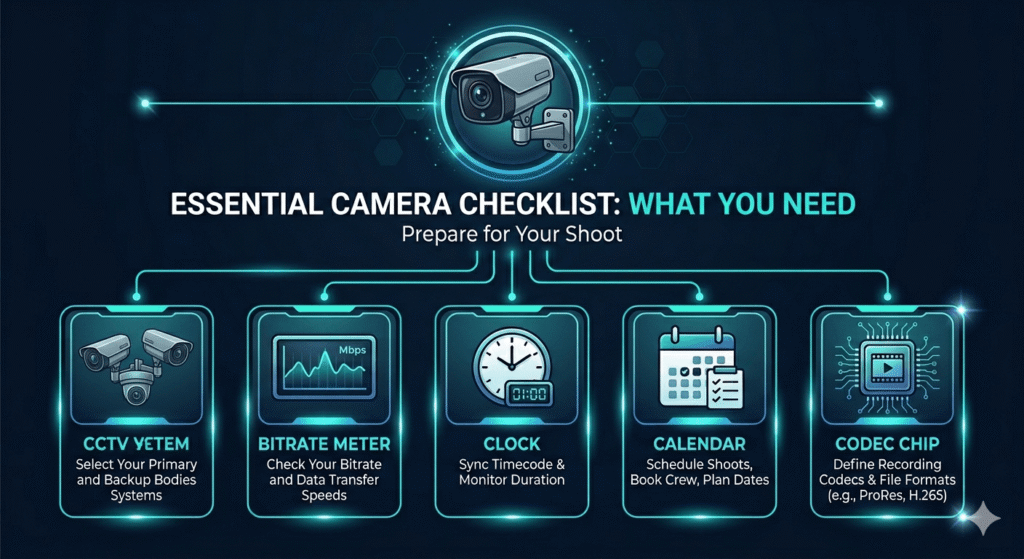
Before plugging numbers into any formula, you need five pieces of information about your system:
| # | Variable | What It Means |
Typical Values |
|---|---|---|---|
| 1 | Number of Cameras | Total IP or analogue cameras in the system | 1 – 128+ |
| 2 | Bitrate (Mbps) | Data rate per camera stream | 1 – 16 Mbps |
| 3 | Hours Per Day | Recording hours — 24/7 or motion only | 8 – 24 hrs |
| 4 | Retention Period | How many days’ footage must be kept | 7, 14, 30, 90 days |
| 5 | Codec | Compression standard used (H.264 / H.265) | H.264 or H.265 |
03 The Master Storage Formula
Here is the universal formula used by security engineers worldwide. It works for IP cameras on an NVR and analogue cameras on a DVR.
Storage (GB) = Bitrate (Mbps) × 0.0075 × Cameras × Hours/Day × Retention Days
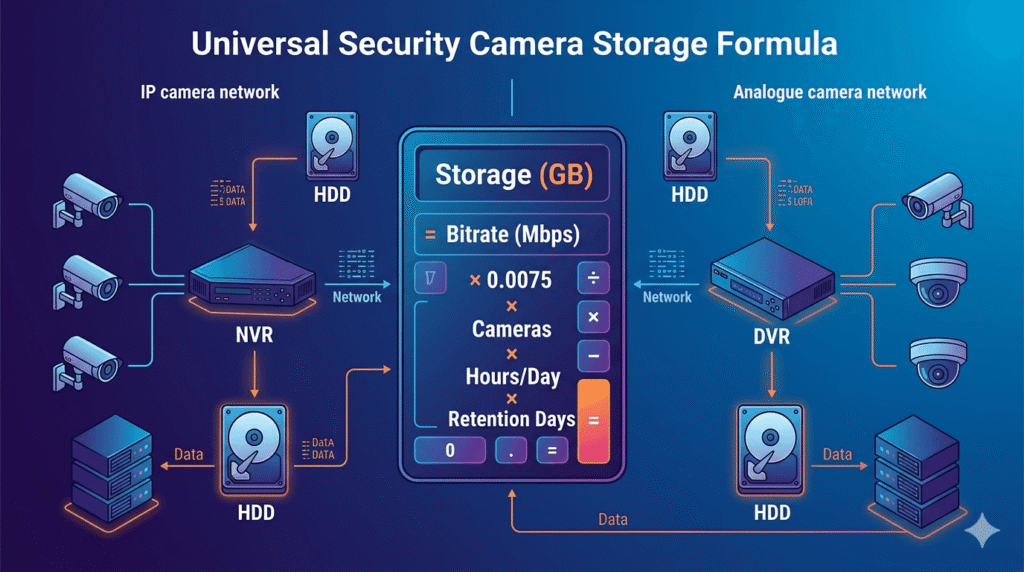
Where does 0.0075 come from?
The conversion factor 0.0075 converts megabits per second (Mbps) into gigabytes per hour:
1 Mbps × 3600 seconds = 3,600 Megabits/hr
3,600 ÷ 8 bits = 450 MB/hr
450 MB ÷ 1000 = 0.45 GB/hr
Simplified: Bitrate (Mbps) × 0.45 = GB per camera per hour
Shortcut: Multiply your bitrate in Mbps by 0.45 to get GB per camera per hour. Everything else is just multiplication.
04 Step-by-Step Worked Example
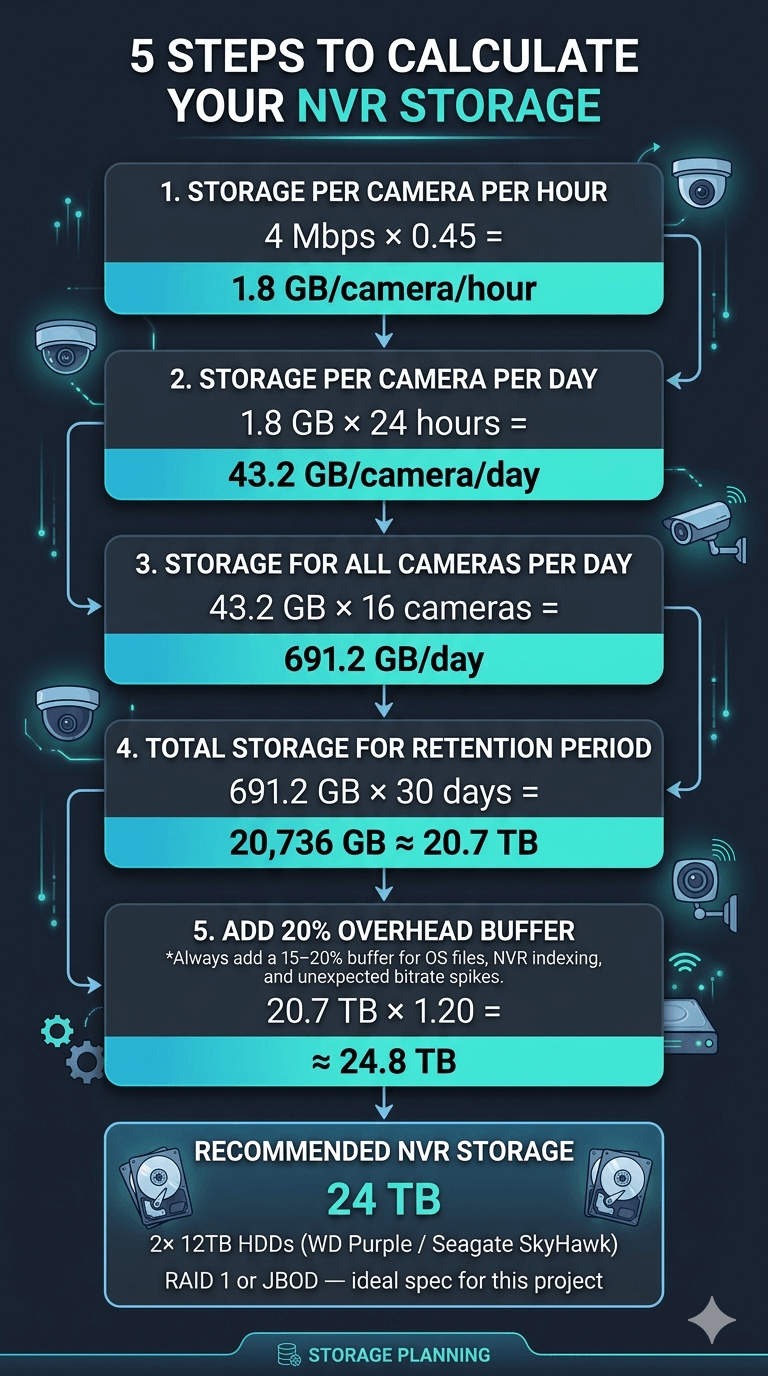
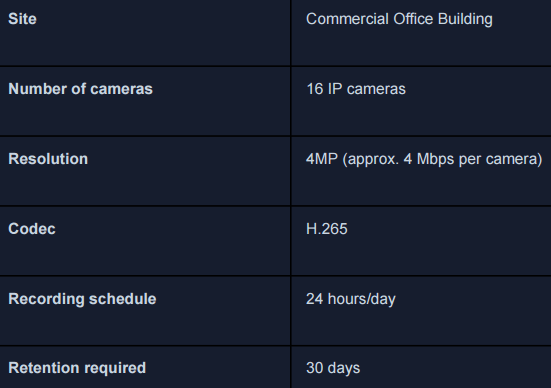
Let’s run through a complete real-world example — a medium-sized commercial project with 16 cameras recording 24/7 for 30 days.
📐 Project Scenario
05 H.264 vs H.265 — Massive Storage Impact
The codec your cameras use is one of the biggest factors in how much storage you need.
H.265 (also called HEVC) uses up to 50% less storage than H.264 at the same image quality.
- Older standard (2003)
- Universally supported
- Higher bitrate needed
- More HDD space used
- Good for budget systems
⚡ H.265 Recommended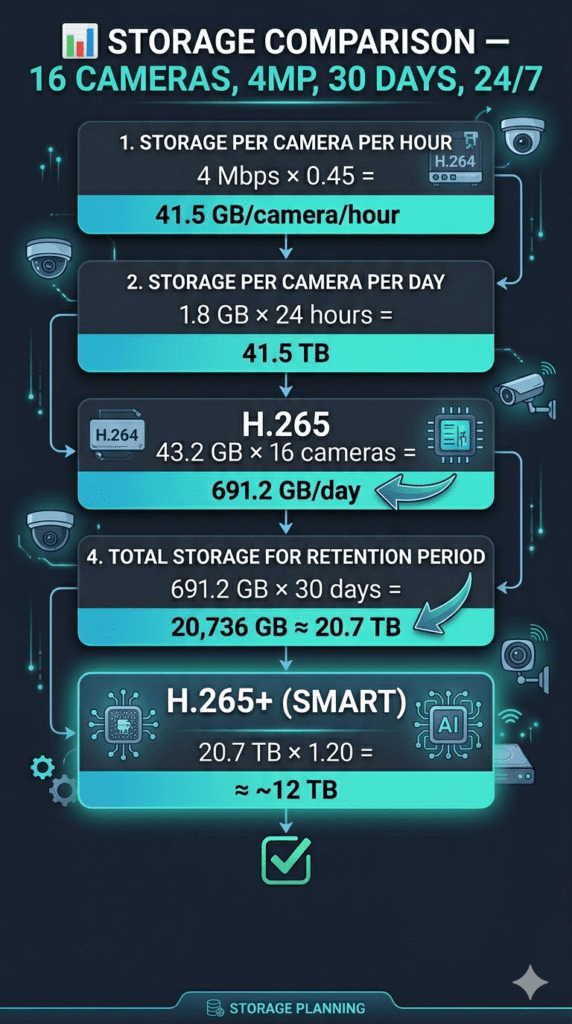
- Modern standard (2013)
- ~50% storage savings
- Same visual quality
- Requires more CPU/GPU
- Best for 4MP+ cameras
Pro Tip: Always specify H.265 or H.265+ on new installations. The hardware cost is the same, and the storage savings will impress your clients immediately.
06 Bitrate Quick-Reference Table
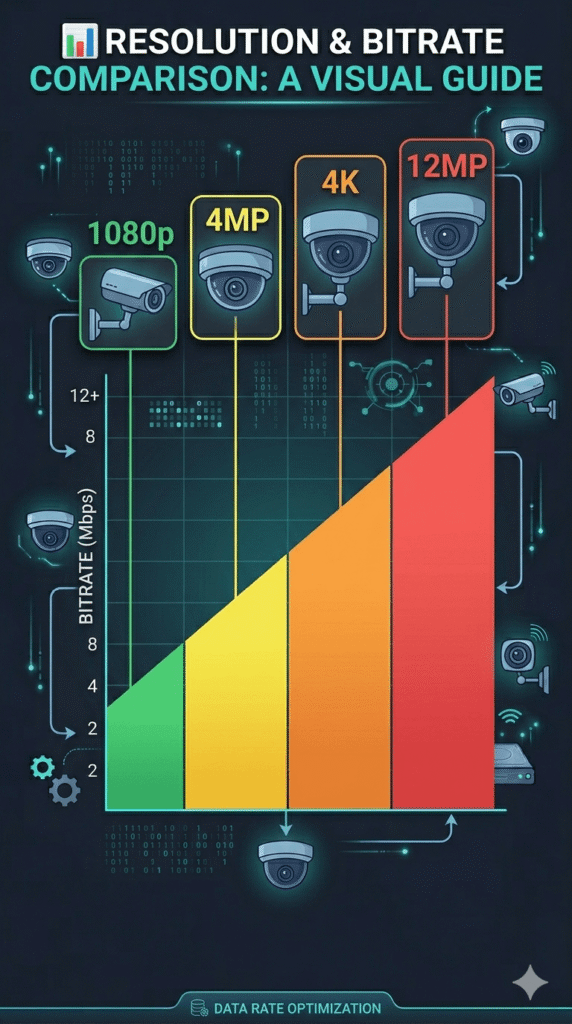
Not sure what bitrate to use? These are standard industry averages at typical quality settings (H.265):
| Resolution | Megapixels | H.264 Bitrate | H.265 Bitrate | GB / Camera / Day (H.265, 24hr) |
|---|---|---|---|---|
| 1080p Full HD | 2MP | 4–6 Mbps | 2–3 Mbps | 21.6 – 32.4 GB |
| 4MP Quad HD | 4MP | 6–10 Mbps | 3–5 Mbps | 32.4 – 54 GB |
| 4K Ultra HD | 8MP | 12–20 Mbps | 6–10 Mbps | 64.8 – 108 GB |
| 12MP / 4K+ | 12MP | 20–30 Mbps | 10–16 Mbps | 108 – 172.8 GB |
08 Pro Tips to Reduce Storage Without Losing Quality
If the calculated storage seems too high, these strategies can dramatically cut your footprint:
🎯 1. Use Motion-Triggered Recording
Instead of recording 24/7, configure cameras to record only when motion is detected. In most office and retail environments, this can reduce storage by 60–80% with no loss of critical footage.
🎯 2. Schedule-Based Recording
For sites with defined operating hours (e.g., 8 AM – 8 PM), schedule recording only during those 12 hours. This instantly halves your storage compared to 24/7.
🎯 3. Use Variable Bitrate (VBR)
VBR encoding uses lower bitrates when the scene is static and higher rates when there is movement. Most modern NVRs and cameras support this. Expect a 20–40% average bitrate reduction.
🎯 4. Apply Smart Codec (H.265+)
Proprietary smart codecs like Hikvision’s H.265+ or Dahua’s Smart H.265+ go beyond standard H.265 by using AI to identify background areas and compress them more aggressively, delivering up to 70% storage savings vs. H.264.
Best Practice Combo: H.265+ codec + Motion-triggered recording + 12hr schedule = up to 85% storage reduction on standard office projects. Always document your recording settings in the T&C handover dossier.
You’ve Got the Formula — Now Own It
CCTV storage calculation isn’t guesswork — it’s a repeatable, professional process. With the five variables and the formula above, you can size any system correctly on the first attempt, impress clients with detailed specs, and avoid costly redesigns.